Strengthen Your WordPress Site’s Security with Password Policies
Stop weak and breached passwords before they become a security incident. Enforce policies across every WordPress role, screen passwords against real-world breach data, and prevent reuse – all from one plugin.
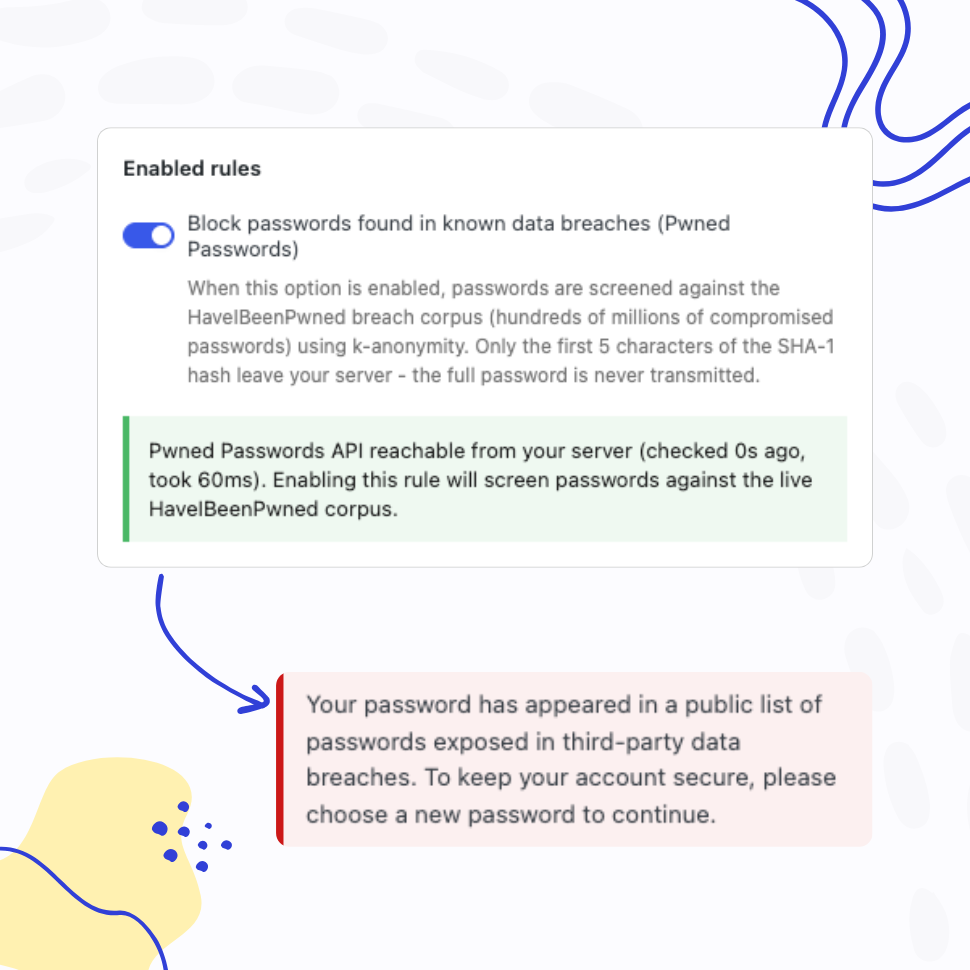
Pwned Passwords Integration
Block Compromised Passwords with Pwned Passwords Integration
Screen every password against the Have I Been Pwned database of millions of breached credentials – on set, on change, and at every login. Catch compromised passwords before attackers do.
- Real-time checks on password set, change, and login
- Privacy-preserving k-anonymity API – passwords never leave your site
Password Complexity Enforcement
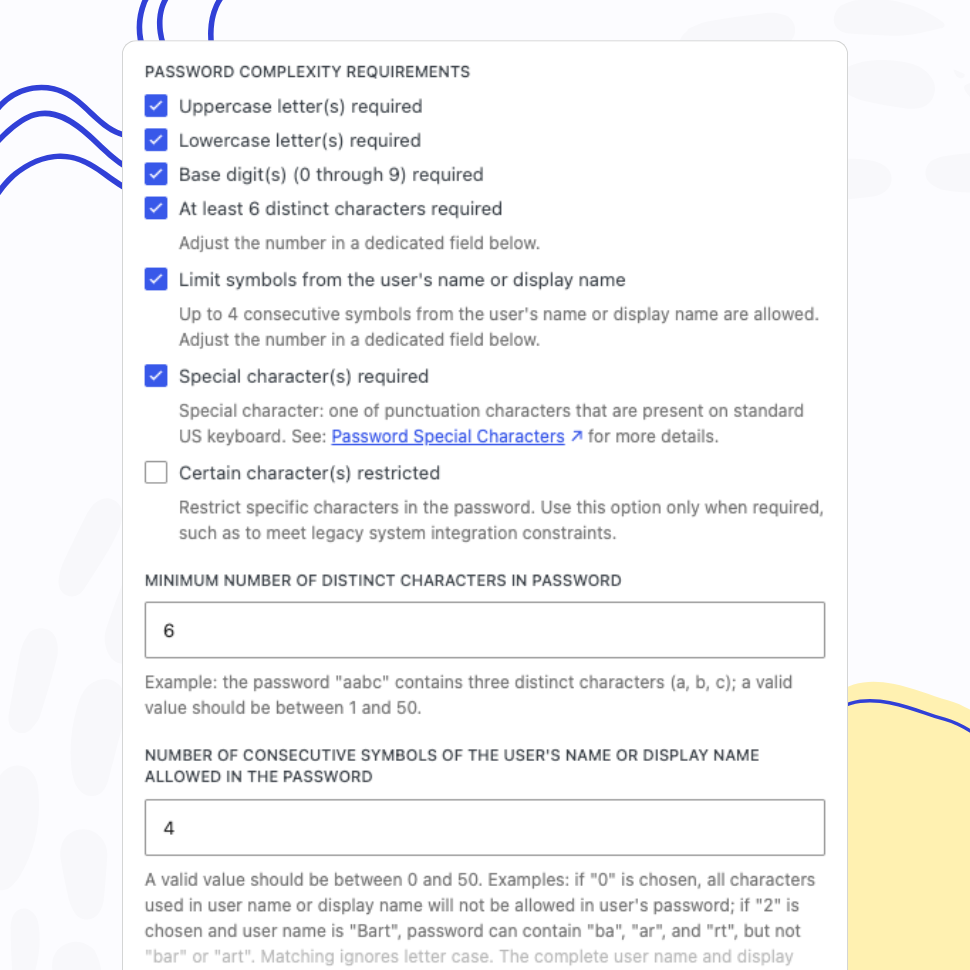
Define and Enforce Password Complexity Rules
Ensure users create sufficiently long passwords with the required combination of characters.
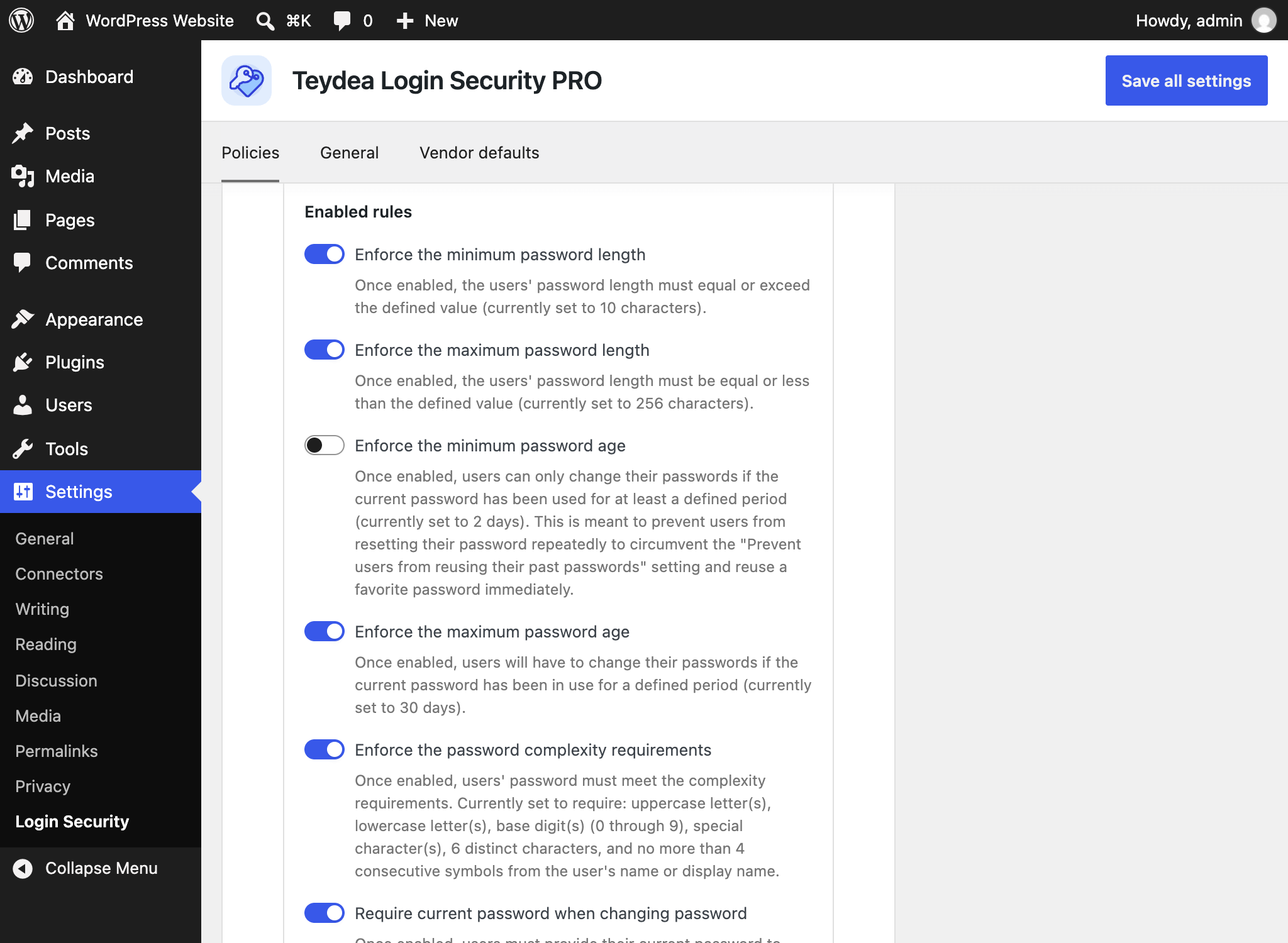
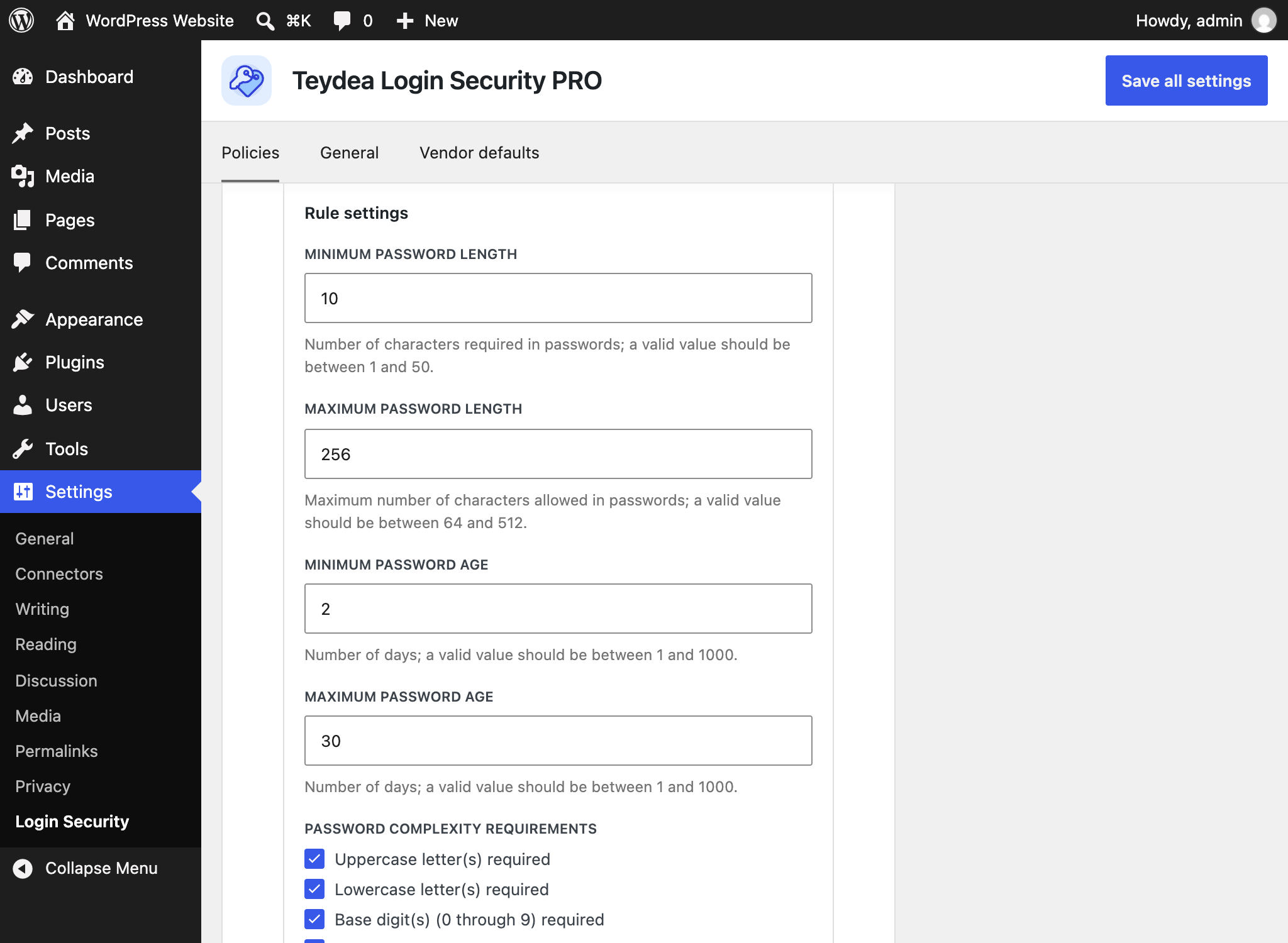
- Enforce the use of uppercase, lowercase, digits, special characters, and/or unique characters
- Set minimum and/or maximum password length
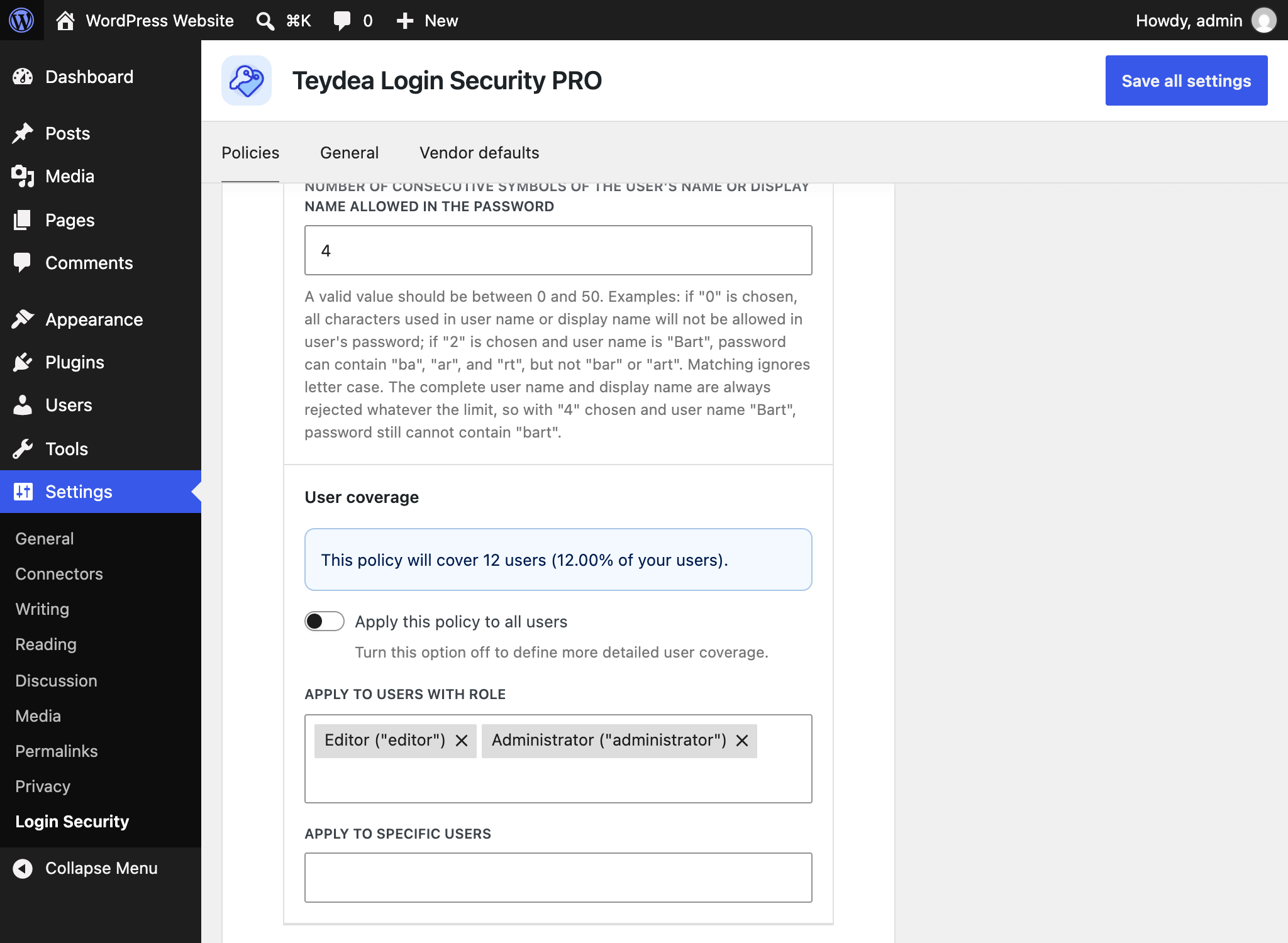
- Limit the use of consecutive symbols from the user’s name or display name
Restricted Passwords List
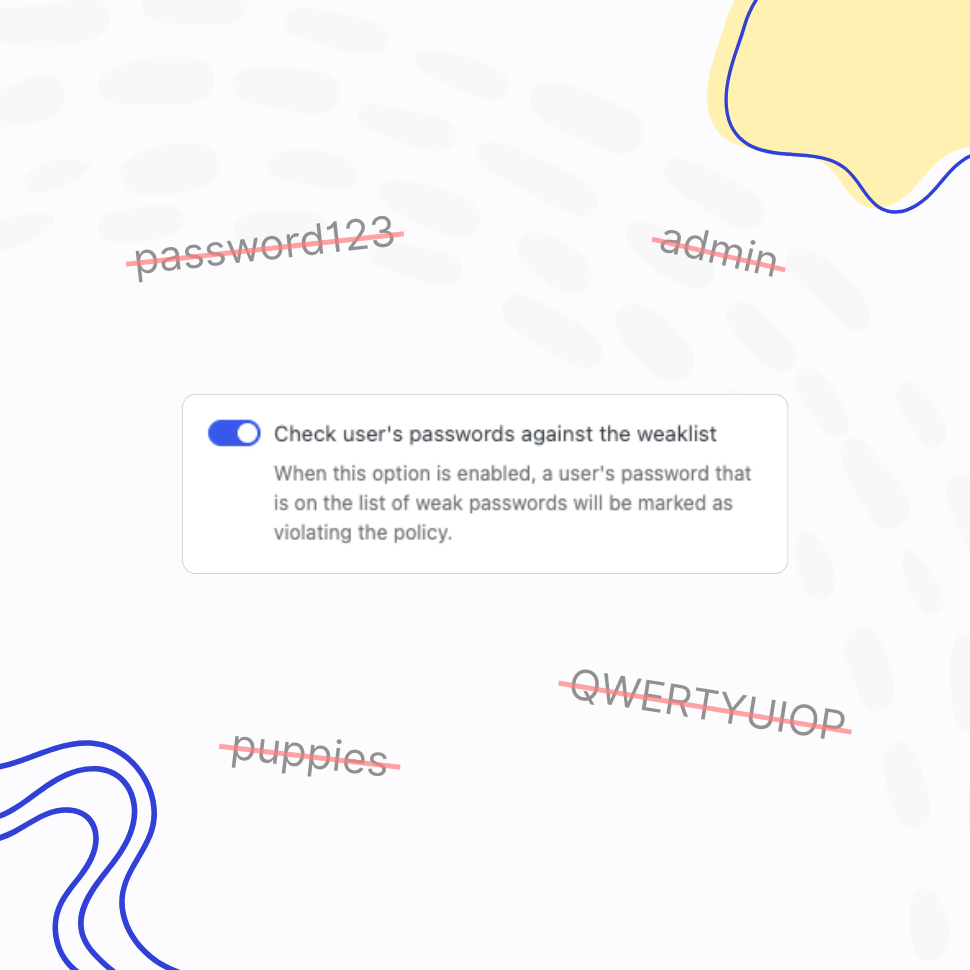
Block Common Passwords and Your Own Restricted Words
Stop weak passwords on two fronts. Screen every password against a list of over 100,000 of the most common passwords, and block your own restricted words and phrases – your brand, company, or product name – anywhere they appear inside a password.
- Ensure users don’t use weak passwords
- Update the list anytime to meet your unique needs
“The restricted passwords list blocks over 100,000 common weak passwords, which has plenty of value.”
WP Mayor
Dedicated Policies by User and/or Role
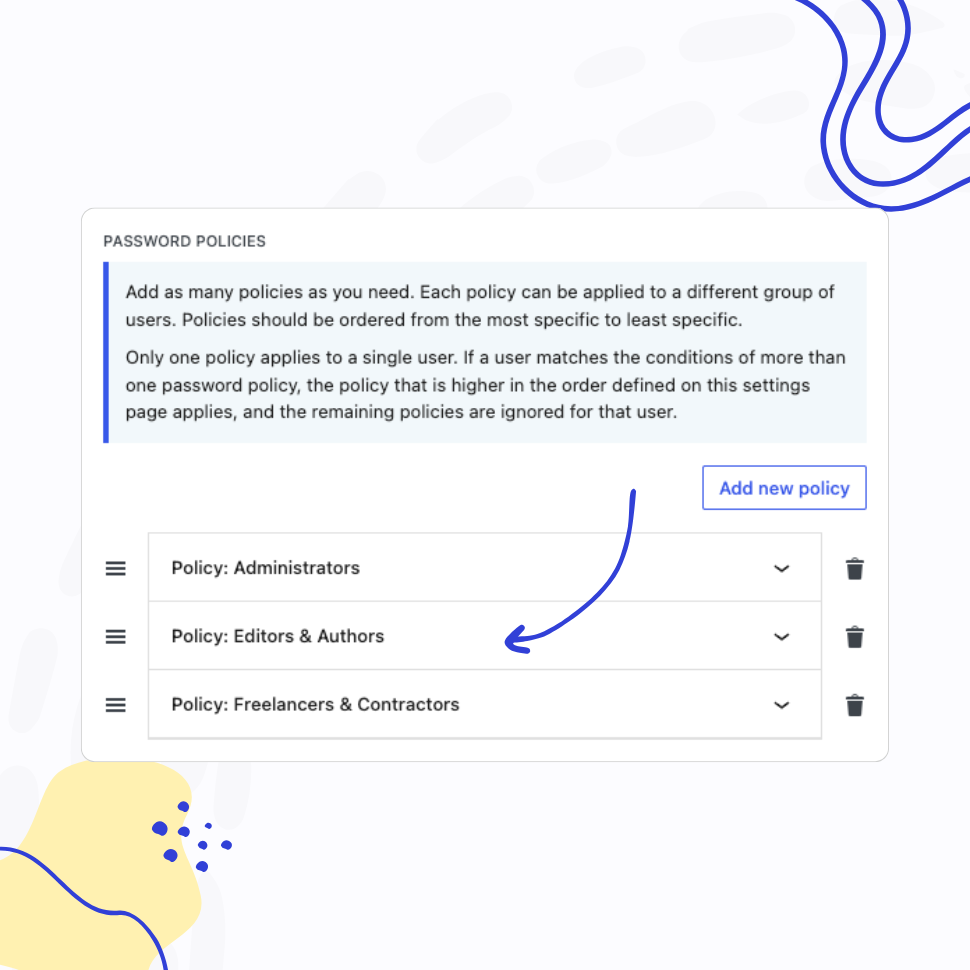
Create Dedicated Password Policies for Different User Groups
Define multiple password policies and assign them to specific users based on their role or username, ensuring greater flexibility and control.
- Assign policies by user role and/or by username
- Apply a policy to all users at once
“I like the role-based policies as it lets you create targeted requirements for different user groups.“
WP Mayor
Healthy Passwords Retention
Protect Your Website by Enforcing Regular Password Updates
Ensure your website’s security by defining clear password retention rules, reducing the risk of compromised accounts.
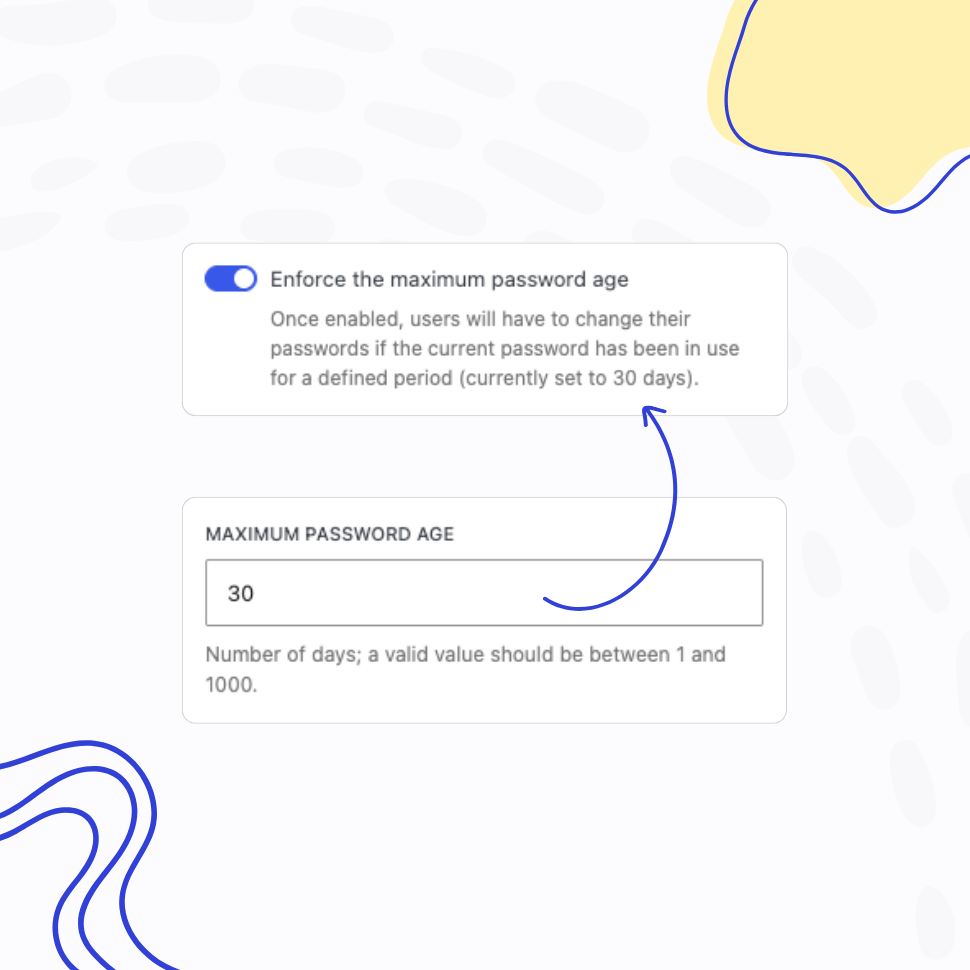
- Control minimum and maximum password age
- Prevent overly frequent password changes to support password reuse prevention
- Enforce healthy password retention policies
Passwords Reuse Prevention
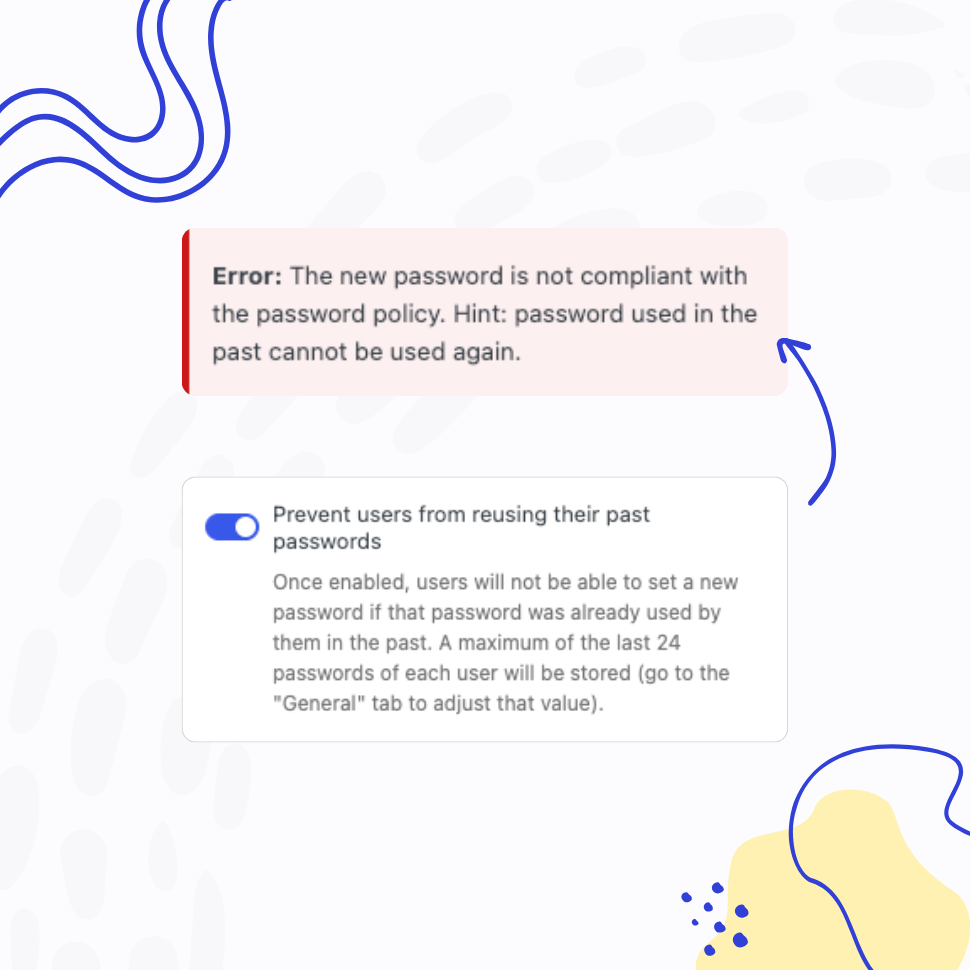
Prevent Reusing the Same Passwords
Ensure users create a completely new password instead of reusing old, “favorite” ones.
- Promote healthy password practices
- Reduce the risk of compromised passwords
Quick Start
Get Started in Three Simple Steps
We’ve made the plugin setup and configuration process as straightforward as possible – without sacrificing flexibility or powerful functionality.
Need any support with getting started? Review the plugin’s documentation and tutorials or contact us.
“[Teydea Login Security] takes credential management on your WordPress website from optional to mandatory.”
WP Mayor · July 29, 2025
Quick Preview
Live Demo & Screenshots
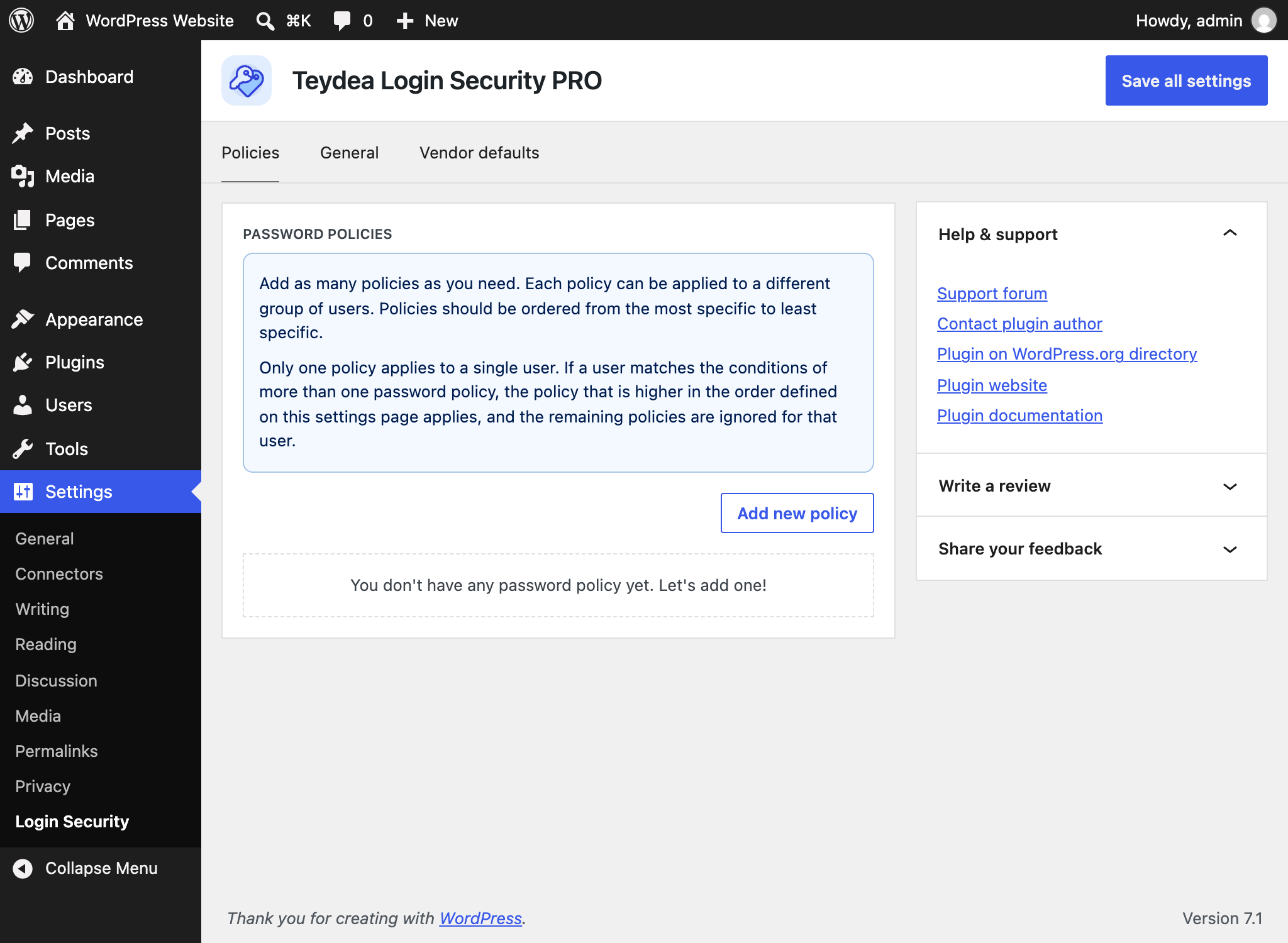
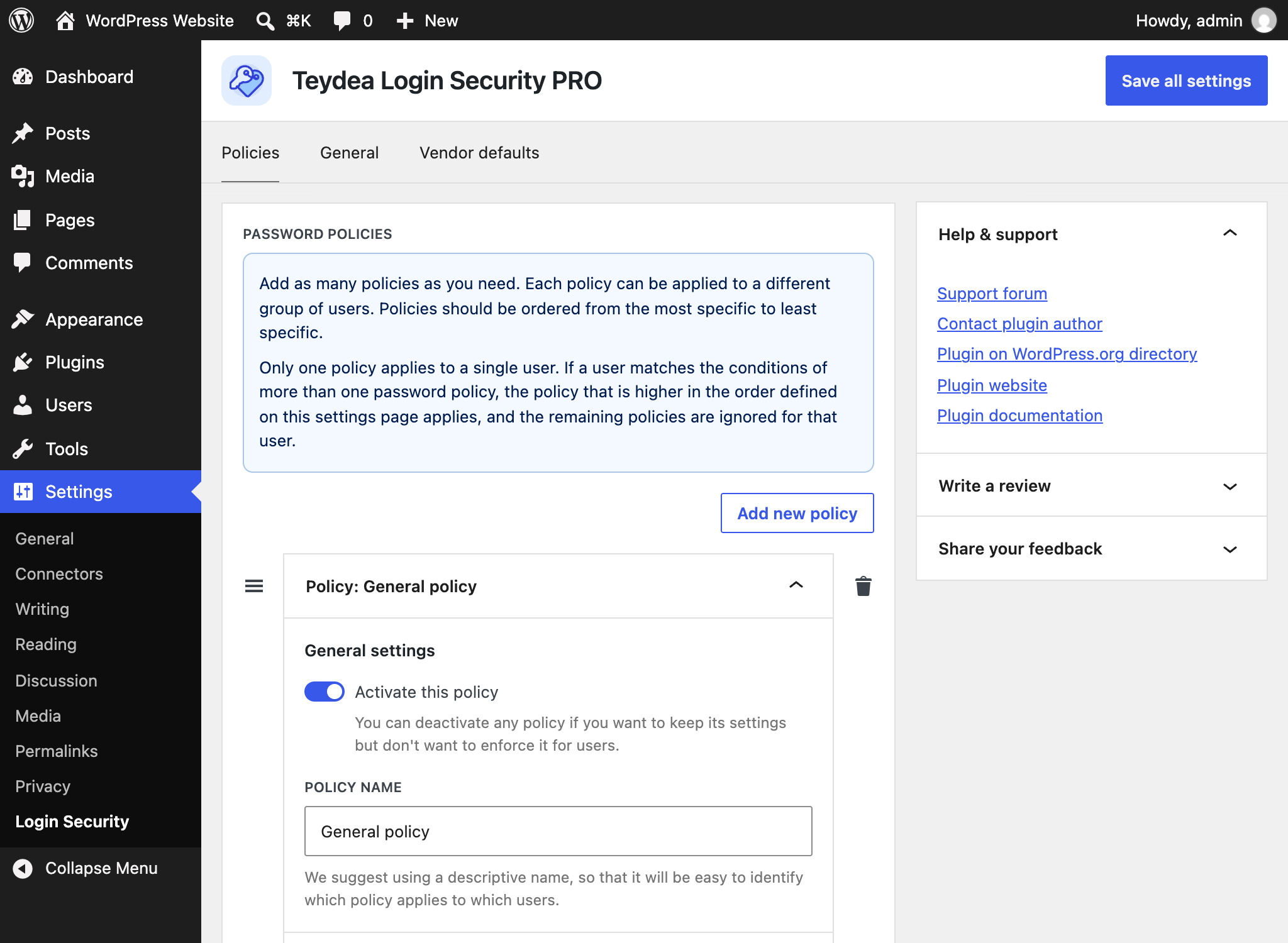
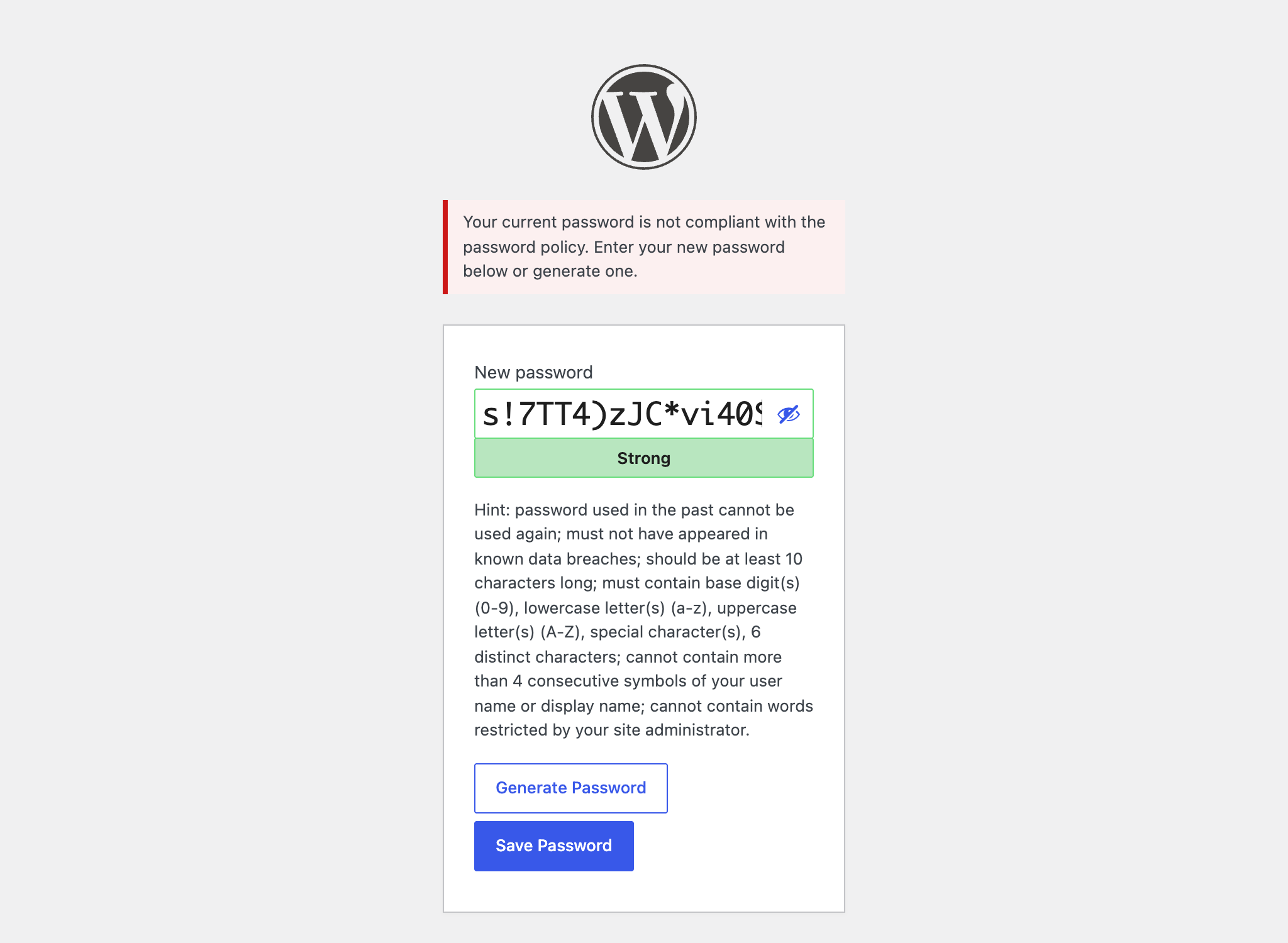
Want to see this plugin in action? Take the quick look at the screenshots below, or launch the private demo site and test the plugin live.
Vision Statement
Why Should You Use This Plugin?
WordPress does not enforce strong passwords by default, allowing users to choose passwords that may be easy targets for hackers, such as “password,” “admin,” or “123456.” Weak and reused credentials are consistently among the most common causes of account compromise reported in annual security research.
This vulnerability becomes especially critical if users with higher-level permissions (such as administrators), access to sensitive user accounts, site settings, or plugin management screens, use weak passwords.
This plugin allows site administrators to create and enforce password policies, requiring all or specific users to use passwords compliant with defined security standards. You can apply policies to everyone, specific users, or particular user roles.
This helps prevent users from selecting weak passwords by letting you set password complexity requirements, password expiration rules, and more. See the complete list of features for additional details.
“It delivers enterprise-grade password enforcement that’s accessible to almost any site.”
WP Mayor
Maintained, Not Just Released
Software You Won’t Have to Replace
Plugins are shipped to be maintained for years, not abandoned after launch. That means updates that keep pace with WordPress, documentation that stays current, and answers when something doesn’t behave.
Support From the Developer
Questions go straight to the developer who wrote the code. No first-line script, no handoffs, no ticket bouncing between departments.
Documentation Worth Reading
Every setting and extension point is documented, with guides for the setups people actually run – not a feature list rewritten as prose.
30-Day Money-Back Guarantee
Not the right fit? One email within 30 days gets the purchase refunded. No forms, no retention offers, no questions.
Start With the Free Version
Every plugin ships a free version on WordPress.org – a real product, not a crippled demo. Run it as long as you like and upgrade only when PRO earns it.
Integrations
Every integration runs the same policy — so the user experience is consistent everywhere
A WooCommerce customer, a Tutor LMS student, and a WordPress admin all get the same inline feedback, the same expiration rules, and the same restricted-passwords list.
- Registration forms: New customer, student, or member signups
- Profile & password changes: Frontend dashboards and WordPress admin panel
- Password reset flows: “Forgot password” and email resets
- Admin-created accounts: Staff-initiated signups and imports
Inline hints · role-aware policies · simple config





FAQ
Find Answers to Common Questions
Browse these frequently asked questions to get quick answers about our plugin, features, and support.
Will This Plugin Work on My WordPress Website?
This plugin does not depend on any third-party libraries, plugins, or themes, and it works with the standard WordPress registration, login, and password reset flows. Sites that replace those flows (single sign-on (SSO), social login, or passwordless authentication) are not supported.
As with any plugin, we cannot guarantee compatibility with every theme, plugin, and hosting configuration; see our Terms and Conditions.
Does the Plugin Support My Language?
This plugin is translation-ready, enabling you to easily translate its content into your preferred language using any translation tool or plugin. By default, the plugin is provided in English.
What Are the Technical Requirements for This Plugin?
This plugin requires WordPress version 6.6 or later and PHP version 7.4 or later. It doesn’t require additional libraries or special hosting configurations.
The plugin has been tested up to WordPress 6.9 and PHP 8.3.
What Is Your Refund Policy?
We offer a risk-free, 30-day money-back guarantee. If you’re not satisfied with the plugin for any reason, you can request a full refund within 30 days of your purchase – no questions asked.
Is This Plugin Actively Maintained?
Yes! This plugin is actively maintained and regularly tested for compatibility with the latest versions of WordPress and PHP. For detailed information about updates, please refer to the changelog.
What Happens If I Don’t Renew My License?
You can continue to use the plugin even if your license expires; however, you will no longer receive plugin updates, new features, or access to support. Your license renews automatically each year unless canceled via the Customer Portal.
How Are the Password Policies Defined?
Password policies are defined on the plugin settings page. You can create as many – or as few – policies as you need.
When creating a new policy, its settings are automatically populated with recommended rules and values, which you can freely adjust and customize.
What Happens When a User’s Password Doesn’t Comply with the Matching Password Policy?
There are two scenarios when this plugin verifies whether a user’s password complies with the matching password policy:
Scenario 1: During User Login
After a successful login, the plugin checks if the user’s password complies with the current password policy. If the password complies, the user will proceed uninterrupted. However, if the password is non-compliant, the user will be logged out of WordPress and prompted to reset their password.
The user must set a new password that meets the policy requirements before they can log in again and continue using their WordPress account.
Scenario 2: During Password Reset
When a user resets their password—either through the “Forgot Password” form or via their user profile—the new password must comply with the applicable password policy. The plugin prevents users from setting passwords that don’t meet these requirements.