Documentation / Settings Page Overview
Settings Page Overview
Accessing the Settings Page
Navigate to Settings → Login Security in the WordPress admin sidebar. The settings page opens with a tab-based interface for managing your password policies.
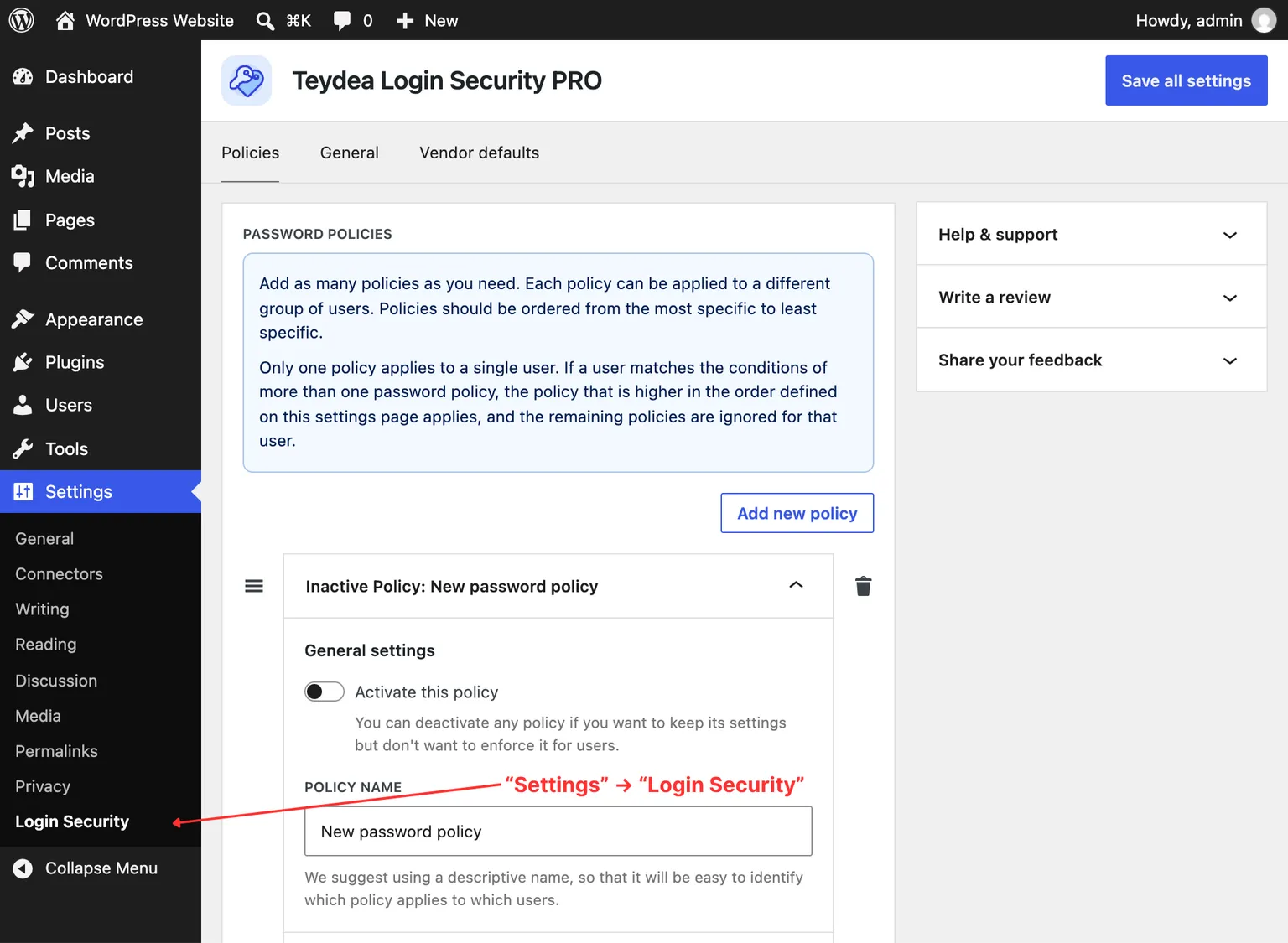
Tabs
The available tabs depend on whether you are using the free or PRO version.
Policy Tab
The Policy tab is where you configure your password policy rules. In the free version, this tab manages a single password policy. In the PRO version it is named Policies and supports unlimited policies.
See Creating a Password Policy for details on configuring policies.
General Tab
The General tab holds site-wide settings that are shared across every policy:
- Restricted words and phrases — Manage the site-wide list of words and phrases that passwords may not contain. Available in both versions. See Restricted Words and Phrases.
In the PRO version, the General tab adds:
- License key — Enter your PRO license key to enable automatic updates. See License Key and Updates.
- Recent passwords storage — Configure how many recent passwords are stored per user for the reuse prevention feature. See Password Reuse Prevention.
- Breached password screening (HaveIBeenPwned) — Choose what happens when the Pwned Passwords API is unreachable. See Breached Password Screening.
- Weaklist screening — Choose what happens when the bundled list of common weak passwords cannot be read. See Weak Password List.
- Password expiry warning emails — Turn on reminder emails and set their schedule, subject, and body. See Password Expiry Warning Emails.
Vendor Defaults Tab (PRO)
The PRO version adds a Vendor defaults tab that lists risky accounts with default or predictable usernames and lets you review or dismiss each finding. See Vendor-Default Account Detection.
On the PRO General and Vendor defaults tabs, informational notices and warnings about the current settings stay visible in the page’s reading order without announcing their full text automatically when you open a tab. Feedback about your actions and scan transitions still announces, including reminder changes and switching weaklist screening to reject passwords when the list cannot be read.
Saving Your Changes
After adjusting settings, click the Save all settings button at the top-right of the page. A confirmation notification appears when the settings are saved. Your changes are applied immediately.
Warning: If you enable the maximum password age rule and your own password age is unknown (for example, right after first activating the plugin), saving settings may log you out and redirect you to the password reset form. This is expected behavior.
Sidebar Panels
The settings page shows a sidebar alongside the tabs with the following panels:
- Help & support — Links to the support forum, plugin author contact, the WordPress.org plugin directory page, and the plugin website. The PRO version adds a Plugin documentation link.
- Write a review — A shortcut to leave a review for the plugin on WordPress.org.
- Share your feedback — A way to contact Teydea Studio with feedback, feature requests, or suggestions.