Documentation / Background Slides
Background Slides
Slide Types
Each background slide has a type that determines what content it displays. You add slides from the Layout & background panel by clicking Add new slide and choosing one of three types.
Image/Video Slides
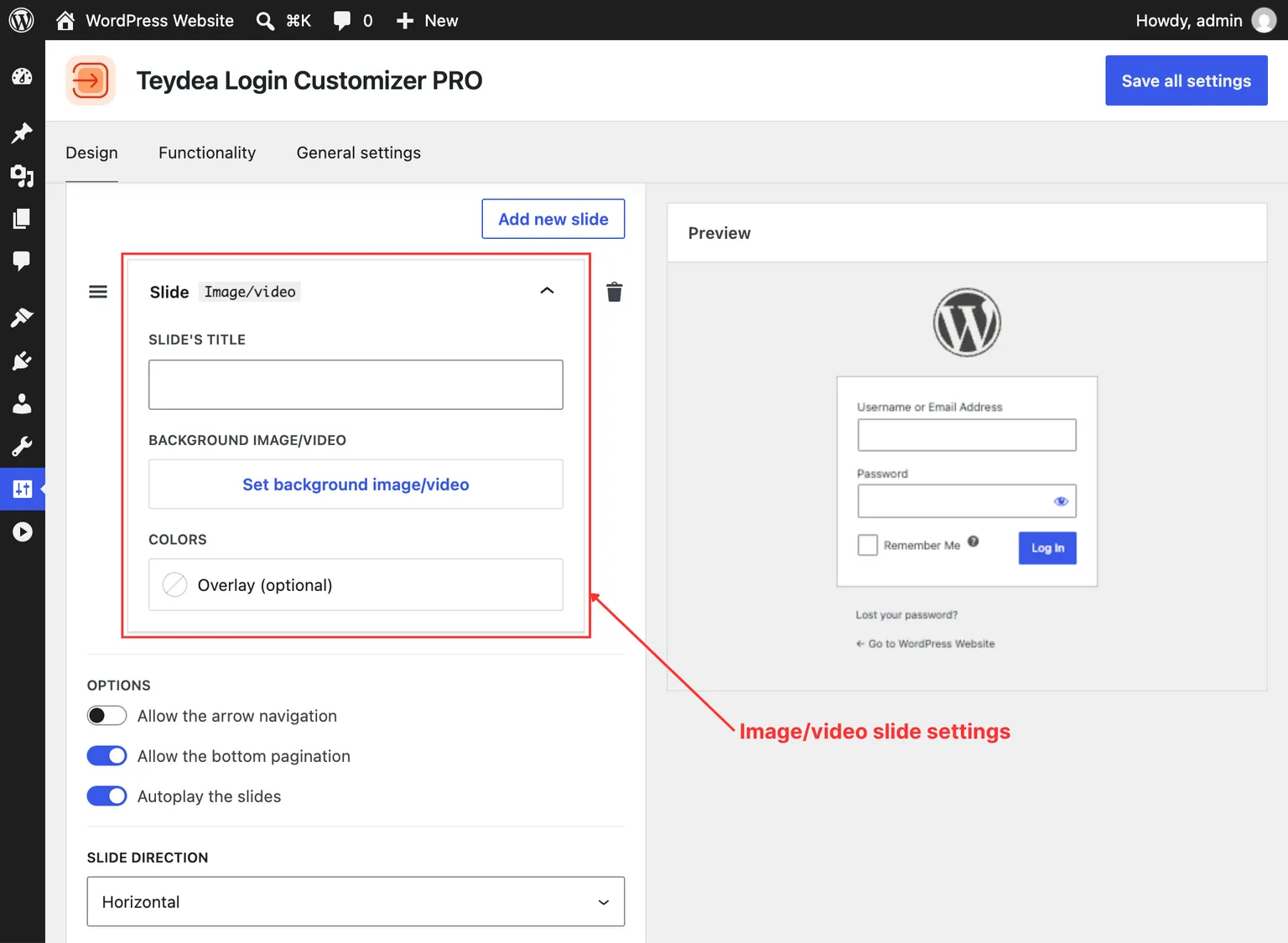
Image/video slides display a media file from your WordPress Media Library. After adding this slide type:
Note (Multisite — Network Admin): The Media Library is not available when configuring settings from the Network Admin dashboard. To upload image or video slides, deactivate the plugin network-wide and activate it on individual sites instead.
- Click Select to open the Media Library and choose an image or video file.
- Optionally set a slide title for your own reference.
- Use the focal point picker to set which part of the image stays centered when the viewport is resized.
- Choose a size/repeat mode to control how the image fills the slide area.
CSS Image Filters
Image/video slides include visual effect controls with nine CSS filters you can adjust:
- Blur — Applies a Gaussian blur effect to the image.
- Brightness — Adjusts the overall brightness of the image.
- Contrast — Increases or decreases the contrast of the image.
- Grayscale — Converts the image toward grayscale.
- Hue-rotate — Rotates the color hues of the image.
- Invert — Inverts the colors of the image.
- Opacity — Controls the transparency of the image.
- Saturate — Adjusts the color saturation of the image.
- Sepia — Applies a warm sepia tone to the image.
Color Overlay
Below the image controls, the Colors section provides an optional Overlay field. This lets you add a solid color or gradient overlay on top of the image or video. Use the alpha channel to make the overlay semi-transparent, which is useful for ensuring text readability over busy images.
Color/Gradient Slides
Color/gradient slides display a static solid color or CSS gradient. After adding this slide type:
- Optionally set a slide title.
- Use the Gradient color picker to select a solid color or gradient. Both the color and gradient pickers are available, along with preset palettes from your theme.
Animated Gradient Slides
Animated gradient slides display a continuously moving gradient animation. After adding this slide type:
- Optionally set a slide title.
- Use the Gradient picker to define the gradient colors.
- Set the Speed in seconds (1-60). Lower values produce faster animations; the default is 15 seconds.
Reordering and Removing Slides
Slides appear as expandable panels within the background section. You can:
- Drag and drop slides to reorder them.
- Remove a slide by clicking the delete button on its panel.
When only one slide remains, the background displays as a static element rather than a slider.