Documentation / Customizing the Background
Customizing the Background
Overview
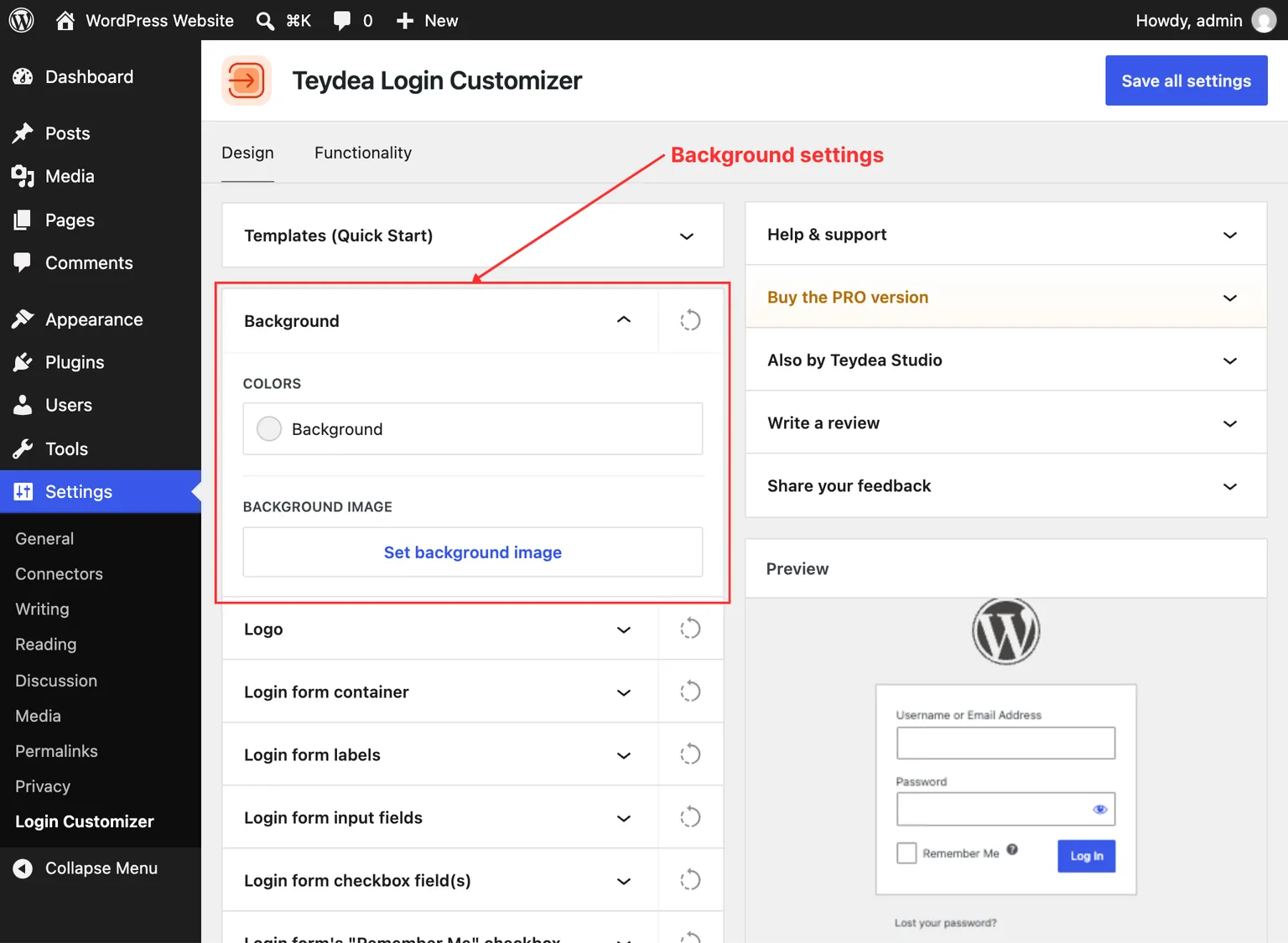
The Background panel controls the overall background of the login page. You can set a solid color, upload a background image, or combine both.
Setting a Background Color
- Navigate to Settings → Login Customizer.
- Open the Background panel in the Design tab.
- Click the color picker next to Color and choose your desired background color.
- The live preview updates immediately to show the new color.
- Click Save all settings to apply the change.
Adding a Background Image
- In the Background panel, click the image upload area to open the Media Library.
- Select an existing image or upload a new one, then click Select.
- The image appears in the preview. Adjust the following options as needed:
– Focal point — Drag the crosshair on the image preview to set the area that should remain visible when the image is cropped by the viewport. – Size & repeat — Choose how the image is displayed. Common options include Cover (fills the entire background, cropping if necessary), Contain (fits the full image within the viewport), and various repeat modes.
- Click Save all settings to apply.
Note (Multisite — Network Admin): The Media Library is not available when configuring settings from the Network Admin dashboard. To upload a background image, deactivate the plugin network-wide and activate it on individual sites instead.
The focal point is especially useful when using a background image that may be cropped on smaller screens. Setting it to the most important area of the image ensures that area stays visible.
Removing a Background Image
To remove a previously set background image, click the remove button next to the image in the Background panel. The login page reverts to showing only the background color.
Advanced Backgrounds (PRO)
The PRO version replaces the Background panel with a Layout & background panel that adds advanced options:
- Multi-column layouts — Split-screen designs with the form on the left or right
- Image and video sliders — Animated background slideshows using multiple images or videos
- Animated gradients — Continuously moving gradient backgrounds
- CSS image filters — Apply blur, brightness, contrast, grayscale, and other effects to background images
- Color overlays — Layer a semi-transparent color over background images