Documentation / Settings Page Overview
Settings Page Overview
Accessing the Settings Page
Navigate to Settings → Login Customizer in the WordPress admin sidebar. The settings page opens with a panel-based interface on the left and a live preview of the login page on the right.
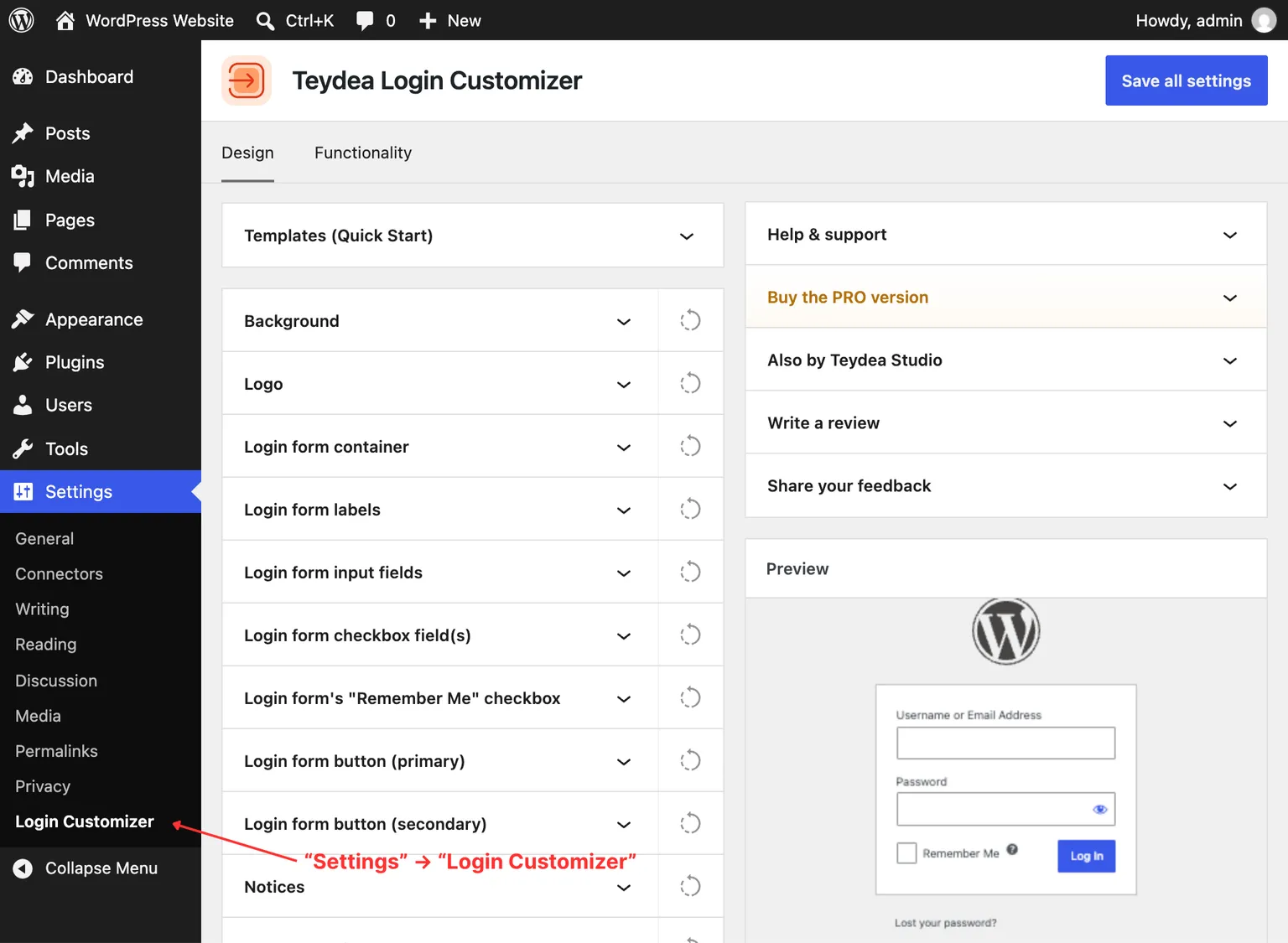
Settings Page Layout
The page is divided into two main areas:
- Settings panels (left side) — Expandable panels organized into tabs. Each panel controls a specific element of the login page.
- Live preview (right side) — An interactive preview that updates in real time as you change settings. This shows exactly how the login page will appear to visitors.
Tabs
The available tabs depend on whether you are using the free or PRO version:
Design Tab
The Design tab contains all visual customization panels:
- Background — Page background color and image (replaced by Layout & background in the PRO version)
- Logo — Logo image, source and variant, link, alignment, and margin
- Login form container — Form box styling and positioning
- Login form labels — Form field label text and typography
- Login form input fields — Text input styling and placeholder text
- Login form checkbox field(s) — Checkbox appearance and checkmark icon
- Login form’s “Remember Me” checkbox — Visibility and label of the “Remember Me” checkbox
- Login form button (primary) — Log In / Register button styling
- Login form button (secondary) — Secondary action button styling
- Notices — Error, notice, and success message styling
- Under-form links — Links below the form (Lost Password, Register)
- Social media links — Social icon links displayed on the login page
- Privacy Policy link — Privacy policy link visibility and styling
- Language switcher — Language switcher visibility and spacing (when multiple languages are installed)
- Footer — Custom footer text below the login form
- Custom CSS — Additional CSS rules for the login page
- Templates (Quick Start) — Pre-designed login page designs (PRO)
Functionality Tab
The Functionality tab contains behavior-related options under the Miscellaneous panel. See Functionality Options for details. In the PRO version, the Redirect rules after login and Login URL panels are also available here.
General Settings Tab (PRO)
The PRO version adds a General settings tab for managing your license key. See License Key and Updates for details.
Saving Your Changes
After adjusting settings, click the Save all settings button at the top-right of the page. A confirmation message appears when the settings are saved. Your changes are immediately applied to the login page.
Sidebar Panels
The settings page shows a sidebar alongside the tabs with the following panels:
- Help & support — Links to the support forum, plugin author contact, the WordPress.org plugin directory page, and the plugin website. The PRO version adds a Plugin documentation link.
- Write a review — A shortcut to leave a review for the plugin on WordPress.org.
- Share your feedback — A way to contact Teydea Studio with feedback, feature requests, or suggestions.