Documentation / Installing the Plugin
Installing the Plugin
Installing from WordPress.org (Free Version)
- In the WordPress admin, navigate to Plugins → Add New Plugin.
- Search for Teydea Login Customizer in the search bar.
- Locate the plugin by Teydea Studio and click Install Now.
- After installation completes, click Activate.
The plugin is now active and ready to configure.
Installing the PRO Version (PRO)
The PRO version is distributed directly through Teydea Studio, not through WordPress.org.
- Download the PRO plugin ZIP file from your Teydea Studio Customer Portal account.
- In the WordPress admin, navigate to Plugins → Add New Plugin.
- Click Upload Plugin at the top of the page.
- Click Choose File, select the downloaded ZIP file, then click Install Now.
- After installation completes, click Activate.
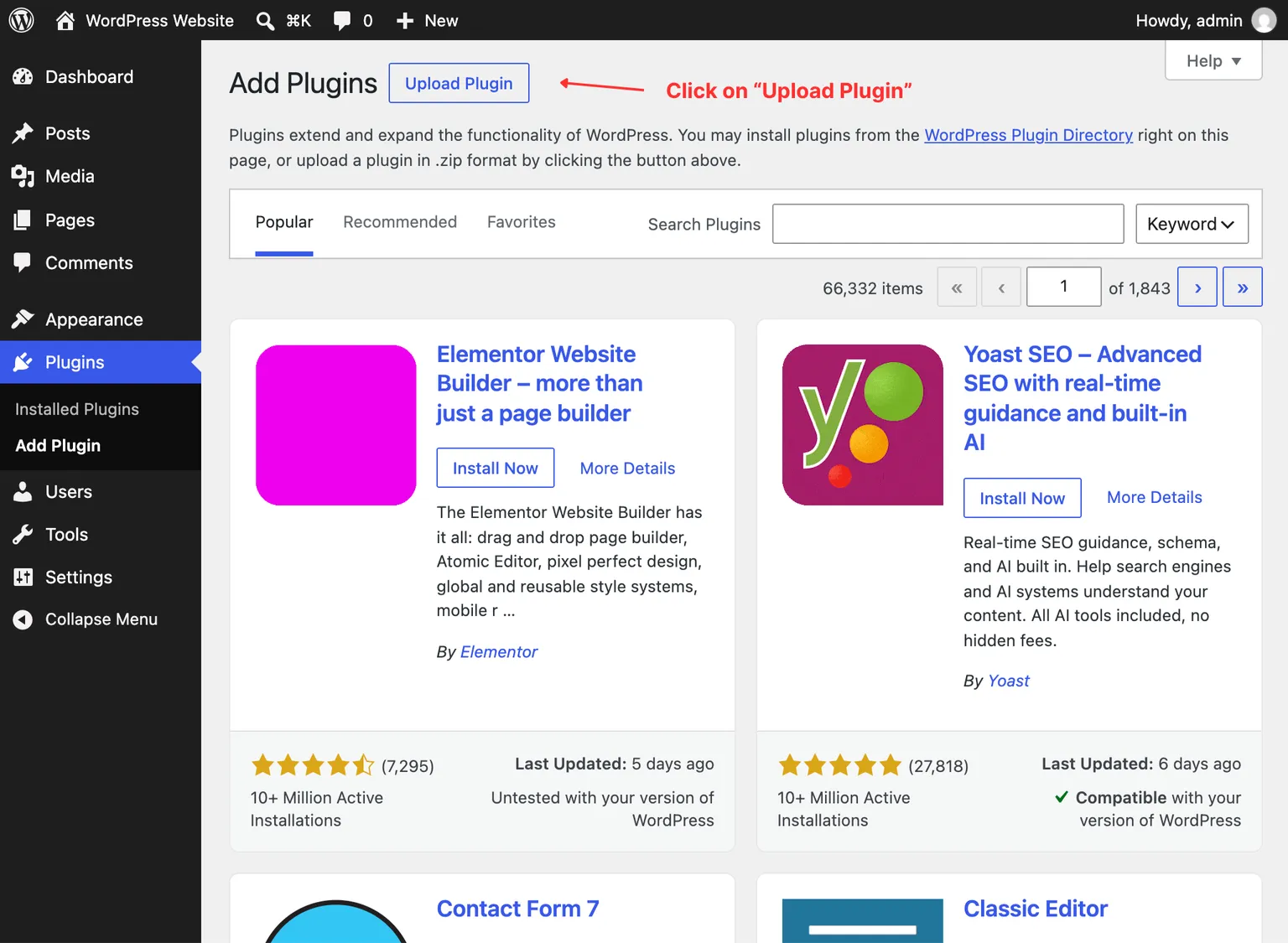
If you previously had the free version installed, the PRO version replaces it automatically. When the PRO plugin activates, it defines a constant that prevents the free version from loading. You do not need to deactivate the free version first, but keeping only the PRO version active is recommended to avoid confusion.
Verifying the Installation
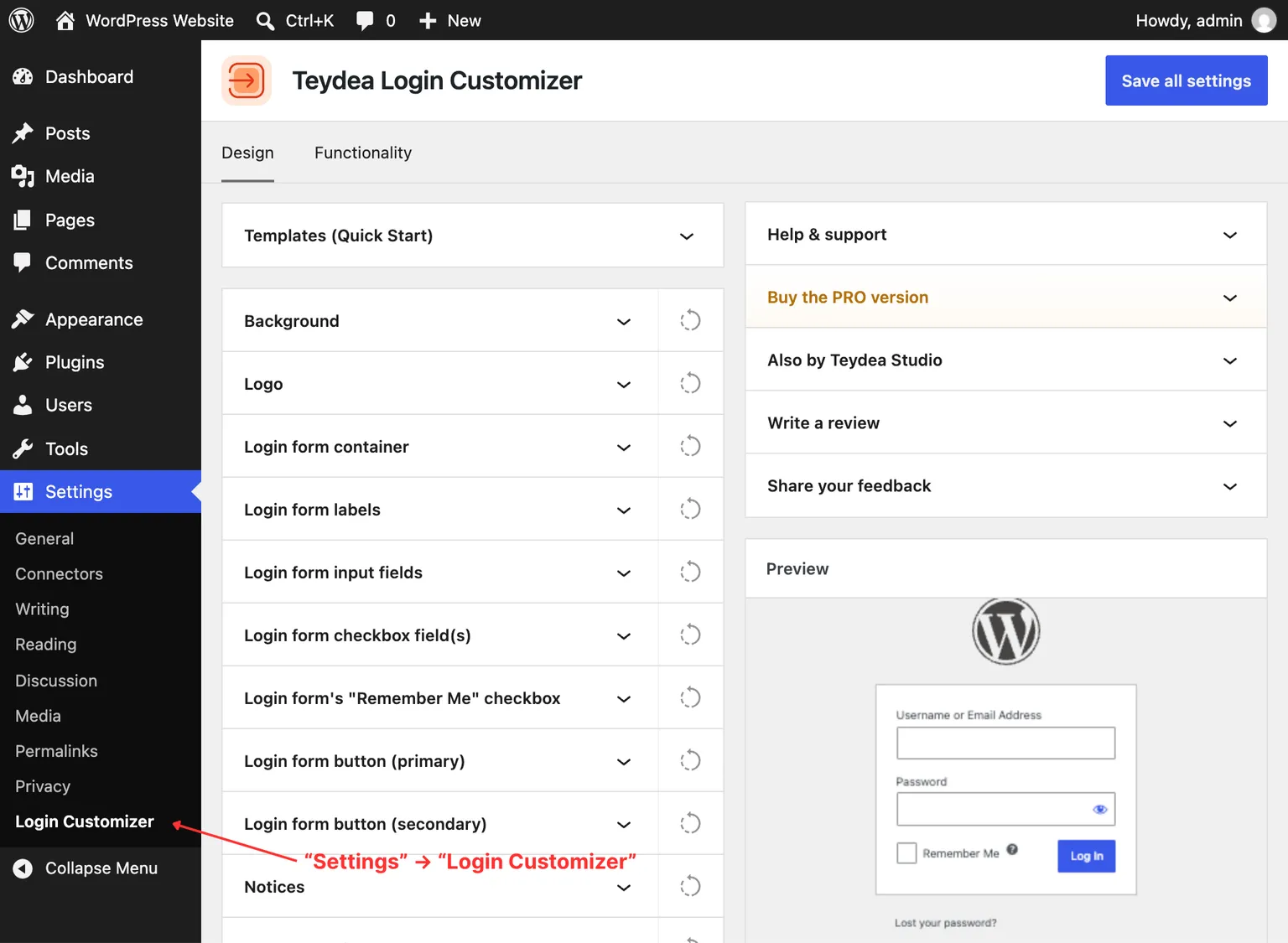
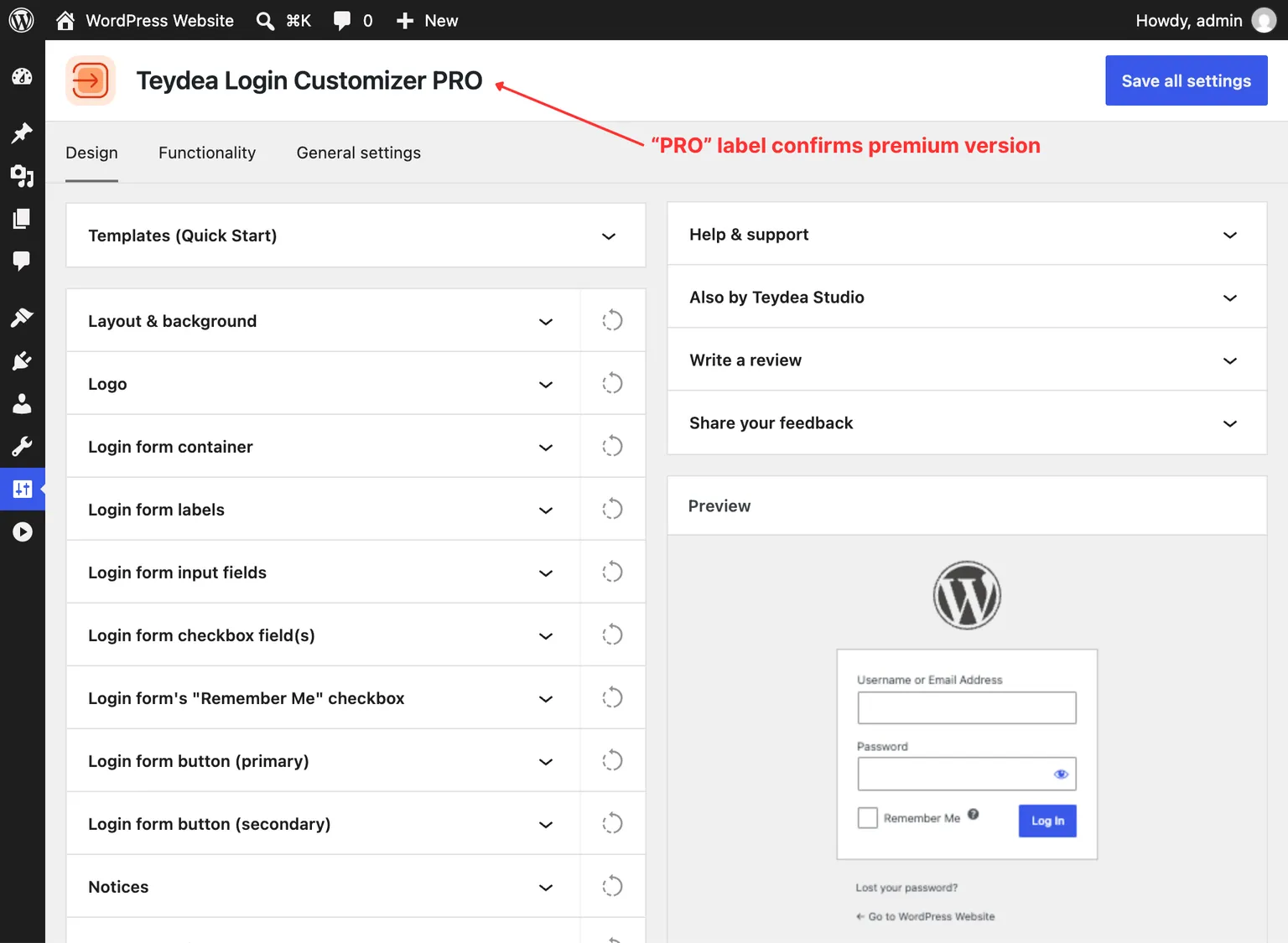
After activation, navigate to Settings → Login Customizer in the left sidebar. You should see the settings page with a Design tab selected by default and a live preview of your login page on the right side. The page heading reads Login Customizer (or Login Customizer PRO when the PRO version is active).
Multisite Installation
Teydea Login Customizer supports WordPress multisite networks. You can activate the plugin network-wide or on individual sites within the network. When activated on a site, the login page customization applies to that site’s login screen.
Network-Wide Activation
When the plugin is activated network-wide, you can configure settings from the Network Admin dashboard under Settings → Login Customizer. However, the WordPress Media Library is not available in the Network Admin context. This means image-related features — such as uploading a custom logo, setting a background image, or applying templates that include images — cannot be used from the Network Admin settings page. To use these features, deactivate the plugin network-wide and activate it on individual sites instead.