Documentation / Layout and Background
Layout and Background
Overview
The PRO version replaces the free version’s basic background panel with the Layout & background panel. This panel gives you control over the page layout mode and supports background sliders with multiple slide types.
Choosing a Layout
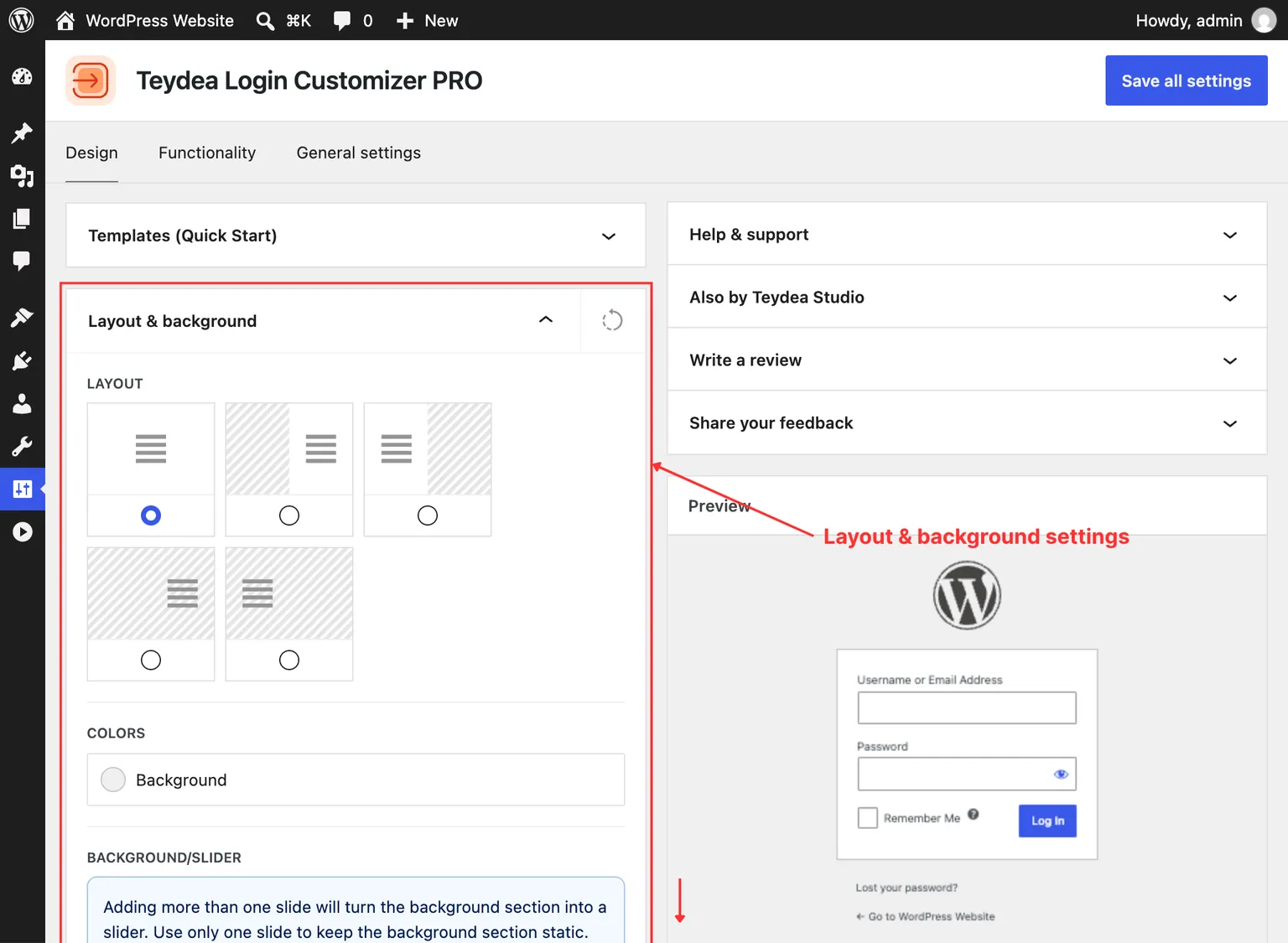
Open the Layout & background panel on the Design tab. The Layout selector at the top offers five layout modes:
- Default (single column) — The standard full-width login layout with the form centered on the page.
- Two columns, with additional background on the left side — Splits the screen into two columns; the left column displays a separate background area and the right column contains the login form.
- Two columns, with additional background on the right side — Same as above but mirrored; the login form is on the left and the background area is on the right.
- One column, with login container on the right side — Full-width background with the login form positioned on the right side.
- One column, with login container on the left side — Full-width background with the login form positioned on the left side.
Click one of the layout icons to select it. The live preview updates immediately.
Mobile Layout Options
When using a two-column layout (background on left or right), additional mobile settings appear:
- Mobile layout — Choose between displaying both columns stacked or only the column with the login form.
- Min-height of the columns on mobile — When both columns are displayed on mobile, set their minimum height as a percentage of the viewport height. The default is 85%.
Background Color
The Colors section lets you set a background color for the login page. This supports solid colors and CSS gradients via the color picker.
Adding Background Slides
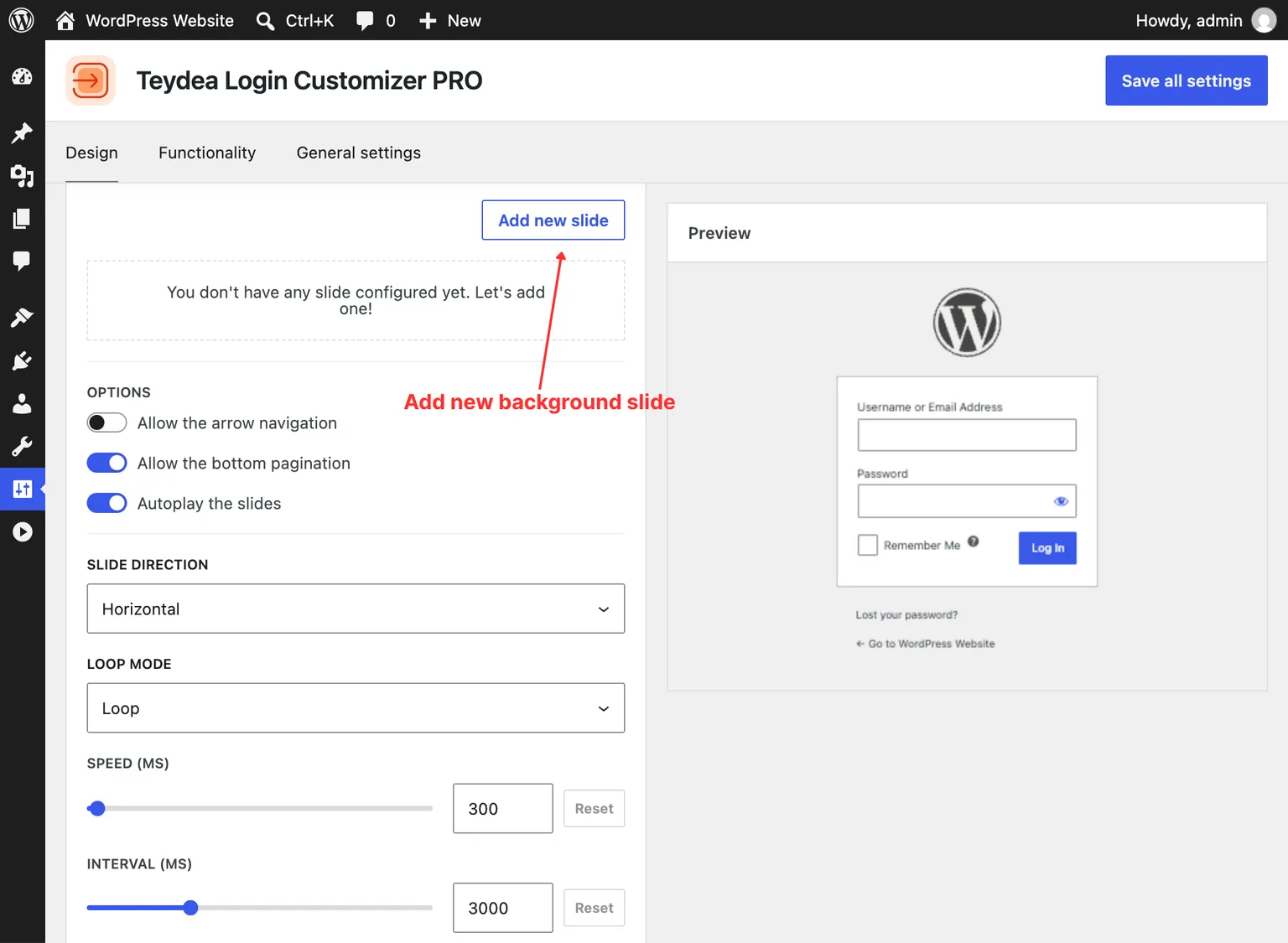
The Background/slider section (or Left-side background/slider and Right-side background/slider in two-column layouts) lets you add background slides. Click Add new slide and choose from three slide types:
- Animated gradient — A continuously animating CSS gradient. See Background Slides for details.
- Color/gradient — A static solid color or CSS gradient.
- Image/video — A media file from your WordPress Media Library with optional filters and overlays.
Adding a single slide creates a static background. Adding two or more slides turns the background into a slider.
Note (Multisite — Network Admin): The Media Library is not available when configuring settings from the Network Admin dashboard. Image/video slides cannot be uploaded from the Network Admin. To use image or video backgrounds, deactivate the plugin network-wide and activate it on individual sites instead.
Slider Options
Below the slide list, you can configure how the slider behaves:
- Allow the arrow navigation — Show left/right navigation arrows on the slider.
- Allow the bottom pagination — Show pagination dots below the slider.
- Autoplay the slides — Automatically advance through slides.
- Slide direction — Horizontal or vertical transitions.
- Loop mode — Disabled, Loop (seamless continuous looping), or Rewind (returns to the first slide after the last).
- Speed (ms) — Transition speed in milliseconds (default: 300).
- Interval (ms) — Time between automatic slide transitions when autoplay is enabled (default: 3000). This option appears only when loop mode is not disabled.
Two-Column Backgrounds
In two-column layouts, you can configure a separate background slider for each column. The left-side and right-side background sections each support their own set of slides and independently operate as static backgrounds or sliders.