Documentation / License Key and Updates
License Key and Updates
Overview
Teydea Login Customizer PRO requires a valid license key to receive automatic updates. Your license key is provided when you purchase the plugin from the plugin website.
Entering Your License Key
- Navigate to Settings → Login Customizer.
- Click the General settings tab.
- In the License key panel, paste your license key into the field.
- Click Save all settings.
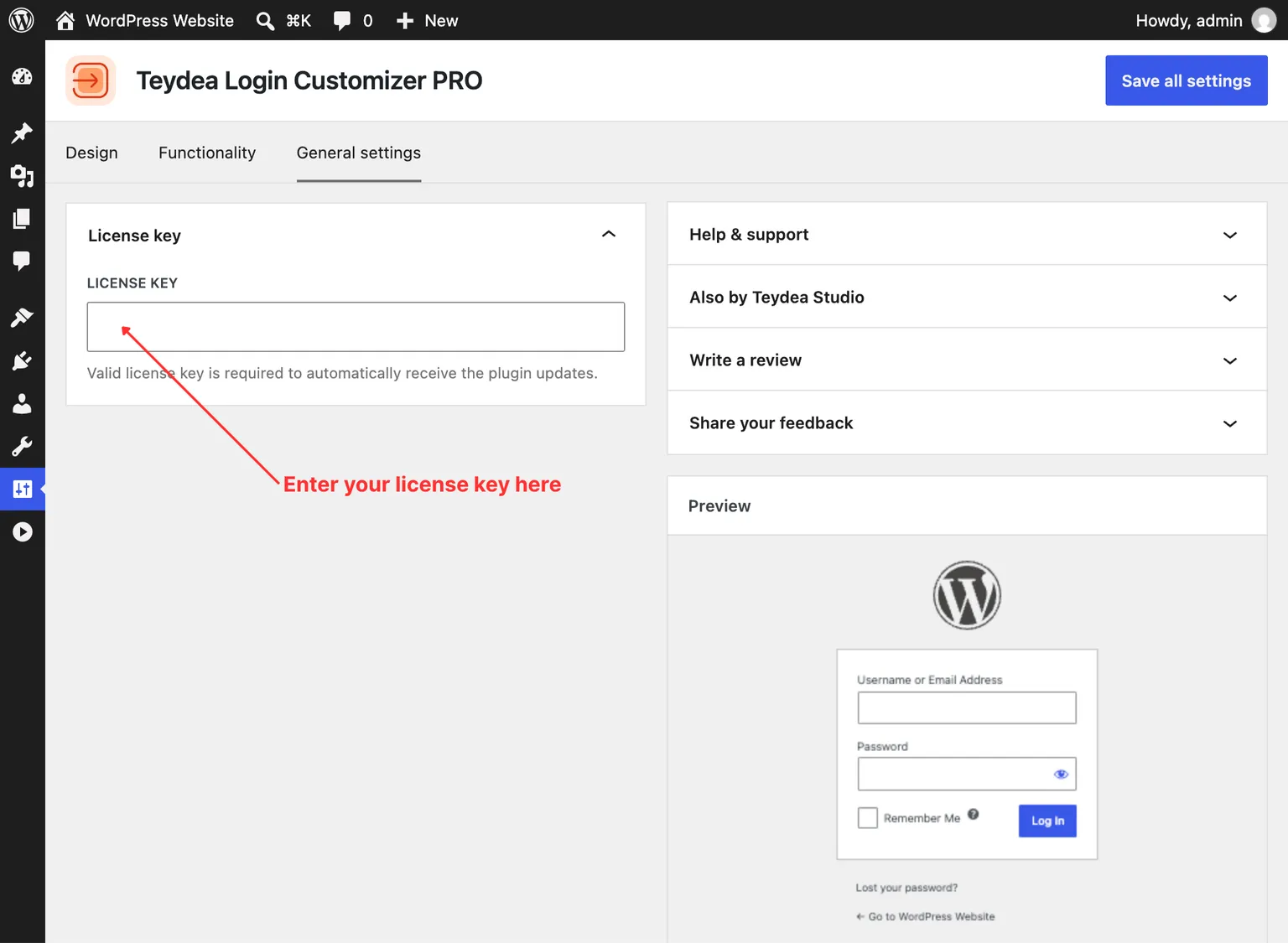
The license key panel validates your key against the Teydea Studio update server. After saving a valid key, your site is authorized to receive automatic updates.
Automatic Updates
Once a valid license key is saved, the plugin checks for updates through the standard WordPress update mechanism. When a new version is available:
- You will see an update notification on the Plugins page and in the Dashboard → Updates screen, just like any other plugin.
- Click Update Now to install the latest version.
The update process uses the Teydea Studio update server, not WordPress.org.
Changing or Removing the License Key
To change your license key (for example, if you move the plugin to a different site), return to Settings → Login Customizer → General settings, replace the key in the field, and click Save all settings. The update authorization transfers to the new key immediately.
To remove the key, clear the License key field and click Save all settings. The plugin will continue to work but will not receive automatic updates until a valid key is entered.