Documentation / Customizing the Form Container
Customizing the Form Container
Overview
The Login Form Container panel controls the appearance of the box that wraps the login form fields. You can adjust its background, borders, positioning, shadow, and dimensions.
Accessing the Form Container Settings
- Navigate to Settings → Login Customizer.
- Open the Login Form Container panel in the Design tab.
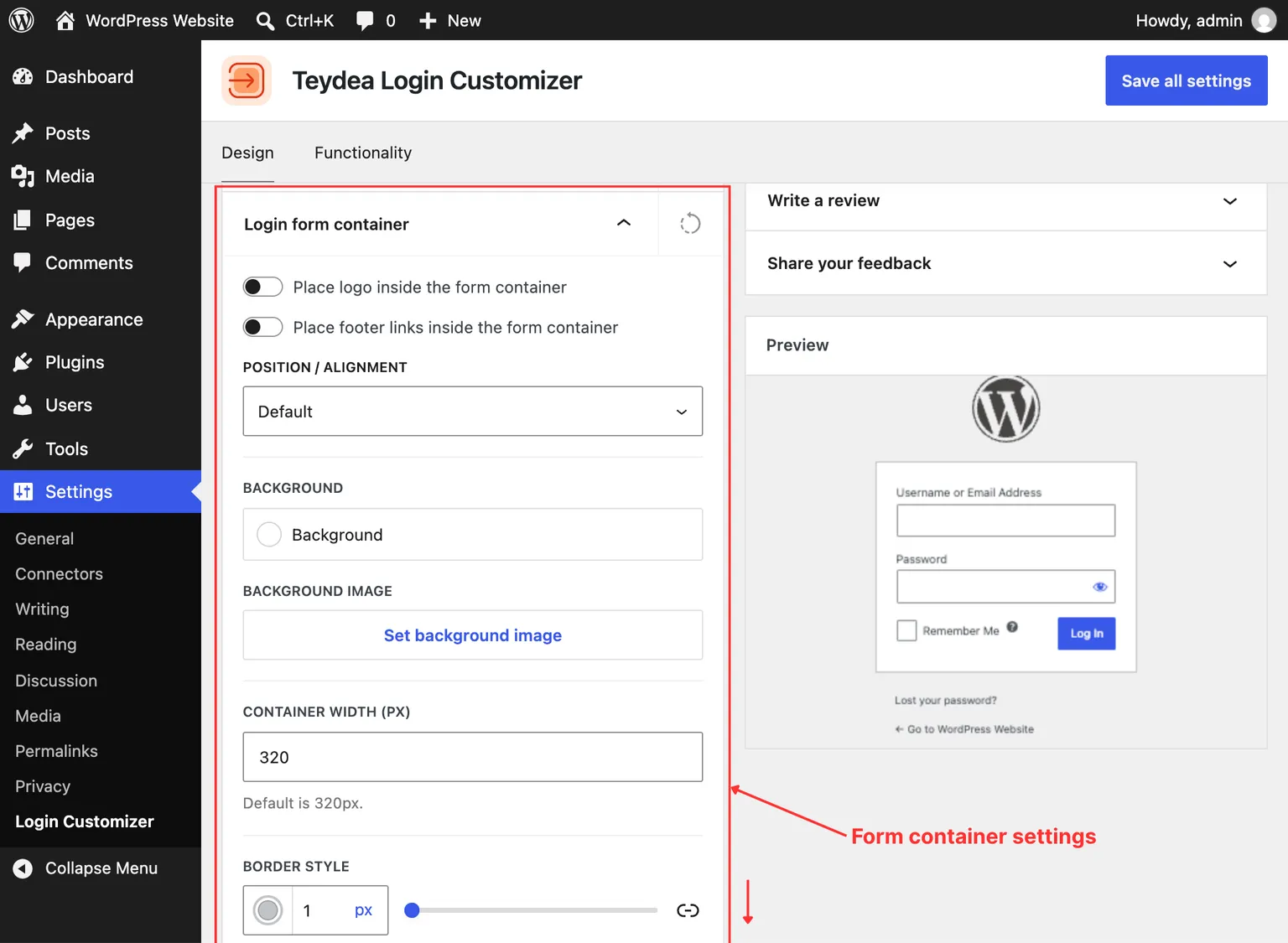
Background and Shadow
- Background color — Set the background color of the form box. The default is white (
#ffffff). - Background image — Upload an image to use as the form container background. Adjust the focal point and size/repeat mode as needed.
- Shadow — Define a box shadow for the form container. Separate shadow values are available for the normal, hover, and focus states.
Border Styling
Each side of the form container (top, right, bottom, left) can be styled independently:
- Border width — The thickness of the border (e.g.,
1px). - Border style — Choose from solid, dashed, dotted, or none.
- Border color — The color of the border.
- Border radius — Round the corners of the form container. Set each corner independently (top-left, top-right, bottom-right, bottom-left).
Hover and focus states have their own border settings, allowing the form container to change appearance when users interact with it.
Spacing
- Padding — The space between the form container border and its inner content. Adjust each side (top, right, bottom, left) independently.
- Margin — The space between the form container and surrounding elements. Adjust each side independently.
- Wrapper padding — Additional outer padding around the entire form wrapper area.
Width
Set a custom width for the form container in pixels. The default is 320 pixels. Increasing the width gives form fields and buttons more horizontal space.
Alignment
Use the Alignment matrix to position the form container on the page. Choose from 9 positions: top-left, top-center, top-right, center-left, center, center-right, bottom-left, bottom-center, and bottom-right. The default position centers the form vertically on the page.
Wrapping Options
- Wrap logo in container — Moves the logo inside the form container box, creating a unified card-style layout.
- Wrap links in container — Moves the under-form links inside the form container box.