Documentation / Social Media Links
Social Media Links
Overview
Teydea Login Customizer lets you display social media icon links on the login page. You can link to your organization’s social media profiles, giving the login page a branded, professional look. The plugin includes built-in icon types covering all major platforms.
Enabling Social Media Links
- Navigate to Settings → Login Customizer.
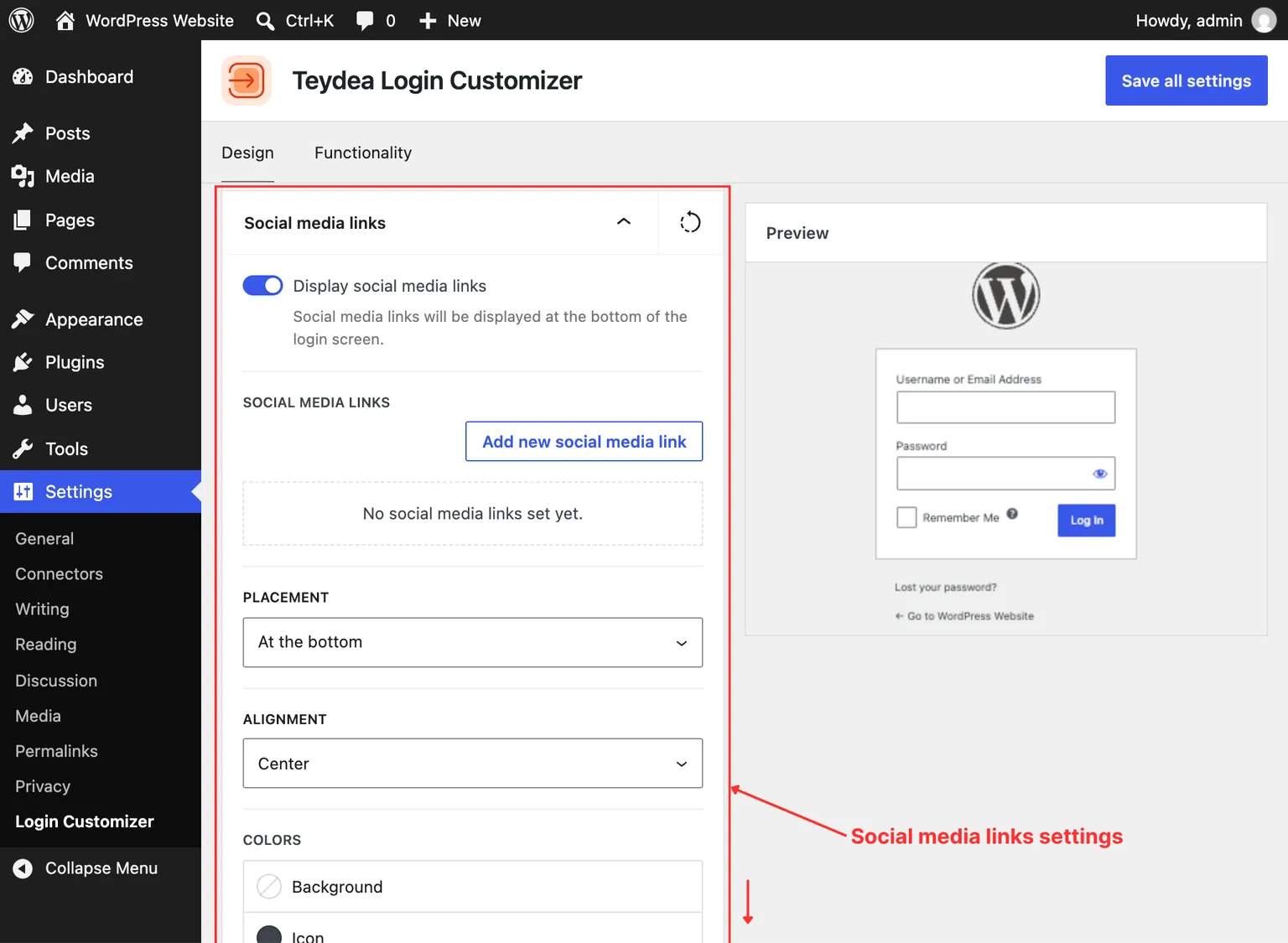
- Open the Social media links panel in the Design tab.
- Toggle Display social media links to enable social media links on the login page.
Adding Links
- In the Social media links panel, click the button to add a new social media link.
- Select the Icon from the dropdown. Available icons include:
– Discord, Dribbble, Facebook, Facebook Messenger, Figma, Flickr, GitHub, Instagram, LinkedIn, Mastodon, Meetup, Pinterest, Reddit, Slack, Threads, TikTok, Tumblr, Twitch, Twitter (legacy), Vimeo, WhatsApp, WordPress, X (Twitter), YouTube
- Enter the Link URL to your profile or page.
- Optionally, set an Aria label for accessibility (e.g., “Visit our Facebook page”).
- Optionally, toggle Open in new tab.
- Click Save all settings to apply.
You can add multiple social media links. Each link is displayed as an icon.
Placement
Use the Placement setting to control where the social media icons appear on the login page:
- Above the logo — Icons appear at the very top of the login area.
- Above the form — Icons appear between the logo and the form container.
- Above inline links — Icons appear between the form and the under-form links.
- Above the privacy policy link — Icons appear just above the privacy policy link.
- Above the language switcher — Icons appear above the language switcher dropdown.
- At the bottom — Icons appear at the very bottom of the login area.
Icon Styling
- Icon color — Set the color of all social media icons for normal, hover, and focus states.
- Icon size — Set the icon size (default:
20px). - Gap — Control the spacing between individual icons.
- Alignment — Align the icons to the left, center, or right.
Icon Container Styling
You can add a border and background color to each icon’s container:
- Background color — Set for normal, hover, and focus states.
- Border — Configure width, style, color, and radius for each side and state.
- Box shadow — Add a shadow to the icon containers for normal, hover, and focus states.
Spacing
Adjust the margin and padding around the entire social media links area.