Documentation / Using Templates
Using Templates
Overview
Templates provide preset designs that you can apply with a single click. They configure all visual settings at once, giving you a polished login screen instantly. After applying a template, every setting remains fully editable so you can fine-tune the design to your preference.
Applying a Template
- Navigate to Settings → Login Customizer.
- On the Design tab, open the Templates (Quick Start) panel.
- Browse the available templates. Each template displays a preview image and its name.
- Click Use this template on the design you want to apply.
- A checkmark appears briefly to confirm the template was applied, and the live preview updates automatically.
- Click Save all settings to persist the new design.
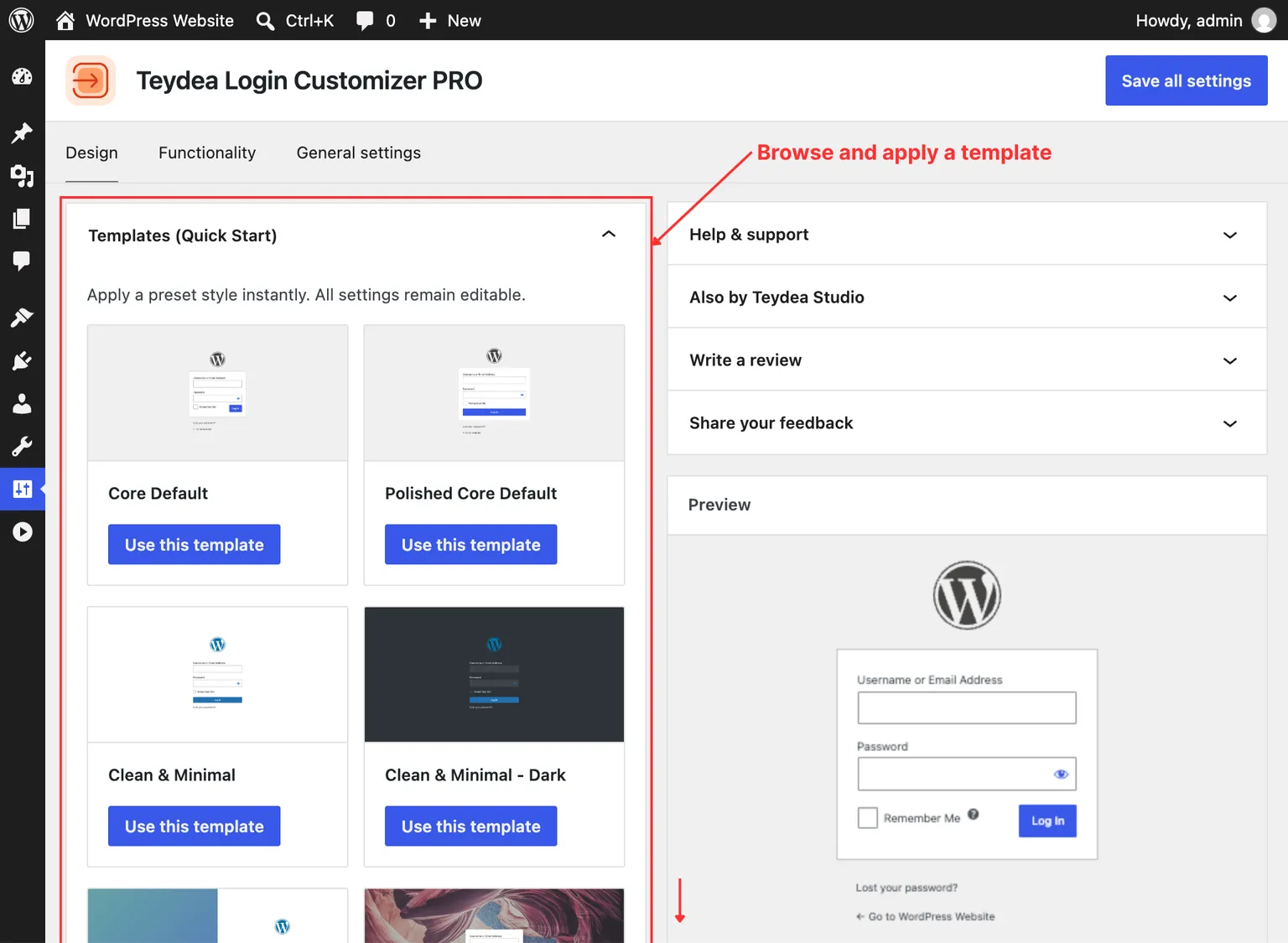
Available Templates (PRO)
The PRO version includes 20+ professionally designed templates:
- Core Default
- Polished Core Default
- Clean & Minimal
- Clean & Minimal – Dark
- Clean & Minimal with Animated Gradient
- Purple Nature
- Corporate
- Split Screen (Abstract)
- Midnight Ocean
- Warm Sunset
- Forest Green
- Azure Mosaic
- Rose Elegance
- Dark Horizon
- Terracotta Dusk
- Modern Teal
- Sunshine Playful
- Golden Noir
- Desert Highway
- Monochrome Ink
- Brutalist Raw
Templates that include background images will automatically upload those images to your WordPress Media Library when first applied. Later uses of the same template image reuse an existing attachment. If two imports create copies at the same time, the plugin keeps images used by saved login settings or attached to content. It may move an unused copy created by the current import to the Media Library trash when recoverable trash is available.
Note (Multisite — Network Admin): The Media Library is not available when configuring settings from the Network Admin dashboard. Templates can still be applied, but any background images they include will not be imported. To use templates with images, deactivate the plugin network-wide and activate it on individual sites instead.
Customizing After Applying
Applying a template replaces all current design settings. After applying a template, you can modify any individual setting in the Design tab panels. For example, you might apply the “Midnight Ocean” template and then change just the logo or button color while keeping the rest of the template design.