Documentation / Age Rules
Age Rules
Overview
Password age rules manage the lifespan of user passwords. The maximum age forces regular password changes, while the minimum age prevents users from changing passwords too frequently.
Maximum Password Age
When the Enforce the maximum password age rule is enabled, users must change their passwords after a specified number of days. Once a password exceeds the maximum age, the user is logged out and redirected to the password reset form.
Configuring Maximum Age
- Navigate to Settings → Login Security.
- In the Enabled rules section, enable Enforce the maximum password age.
- In the Rule settings section, set the Maximum password age value (in days).
- Click Save all settings.
The valid range is 1 to 1000 days. The default value is 30.
What Happens When a Password Expires
When a user’s password exceeds the maximum age:
- On login: The user is logged out immediately and redirected to the password reset form with a message: “Your current password has expired. Enter your new password below or generate one.”
- During a session: When the user accesses the admin panel or any frontend page, the plugin checks whether the password has expired. To avoid unnecessary database queries, this check is cached for 1 hour. If the password is expired, the user is logged out and redirected to the password reset form.
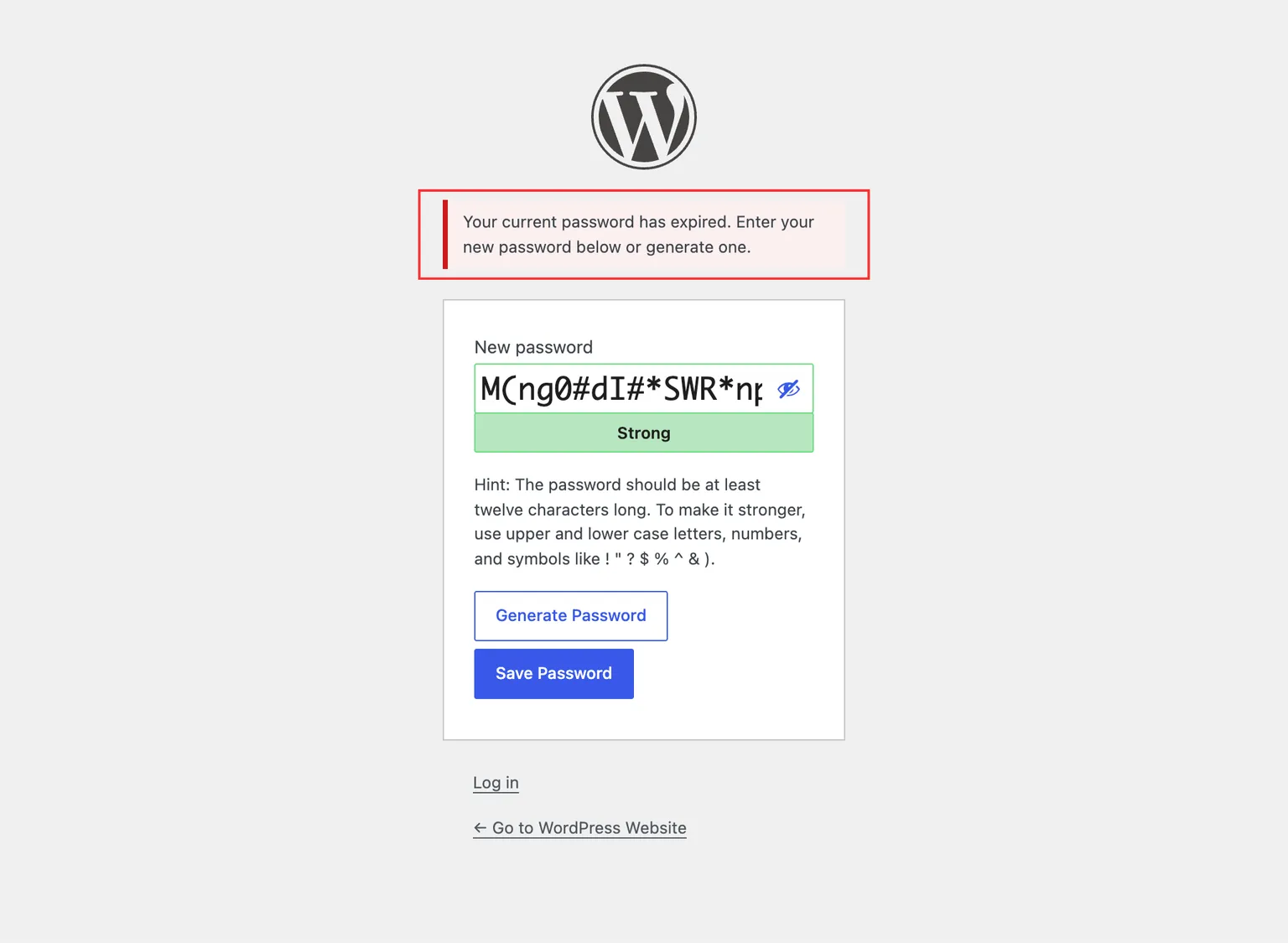
If the plugin has no record of when a user last changed their password (for example, users who existed before the plugin was activated), the password is treated as expired and the user is prompted to set a new password on their next login.
To warn users before their password expires, the PRO version can send reminder emails on a schedule you configure. See Password Expiry Warning Emails.
Minimum Password Age
When the Enforce the minimum password age rule is enabled, users cannot change their password until a specified number of days have passed since their last password change. This prevents users from rapidly cycling through passwords to circumvent the password reuse prevention feature.
Configuring Minimum Age
- Navigate to Settings → Login Security.
- In the Enabled rules section, enable Enforce the minimum password age.
- In the Rule settings section, set the Minimum password age value (in days).
- Click Save all settings.
The valid range is 1 to 1000 days. The default value is 2.
What Happens During the Minimum Age Period
While the minimum age period is active:
- The password change section on the User Profile page is hidden.
- The password reset form is disabled for the user.
- If the user attempts to reset their password through the standard WordPress reset link, the request is denied.
- If a new password is submitted anyway, it is rejected with a message naming the rule and how many days are left — for example: “Your password was changed too recently. This site’s password policy allows another change in 2 days.”
When the Minimum Age Does Not Apply
The minimum age restricts changes the user chooses to make. It never blocks a change somebody else requires of them, so a user is not left with a password they are being forced to replace and cannot replace:
- Expired passwords. When the maximum age has been exceeded, the user can set a new password immediately, even inside the minimum age window. This also covers policies where the minimum age is longer than the maximum age.
- Passwords that no longer meet the policy. When a password stops satisfying the policy — the rules were tightened, a restricted phrase was added, or the password was set by something that bypassed validation — the user is logged out and sent to the reset form, and that reset is allowed to complete.
- Resets that were already authorized. Once a reset link has been issued for an account, the minimum age does not block the user from finishing the reset. A user asking for a reset link of their own accord is still turned away before a link is issued.
- Administrative changes. Anyone who can edit the account — an administrator setting a password on the Edit User screen, or sending a reset link from the Users list — is not held to that account’s minimum age. Administrators changing their _own_ password are, because that is a change they chose to make.
Developers can declare a change compelled from their own code — for an externally driven or scheduled reset — with the password_requirements__is_password_change_compelled filter.
Personal Data Exports
In both the free and PRO versions, WordPress personal data exports include Last password change in the User section when the plugin has recorded a password change for that account. The date and time use the site’s timezone and date and time formats. Administrators can request an export from Tools → Export Personal Data. Accounts with no recorded password change have no entry for this field.