Documentation / Password Hint
Password Hint
Overview
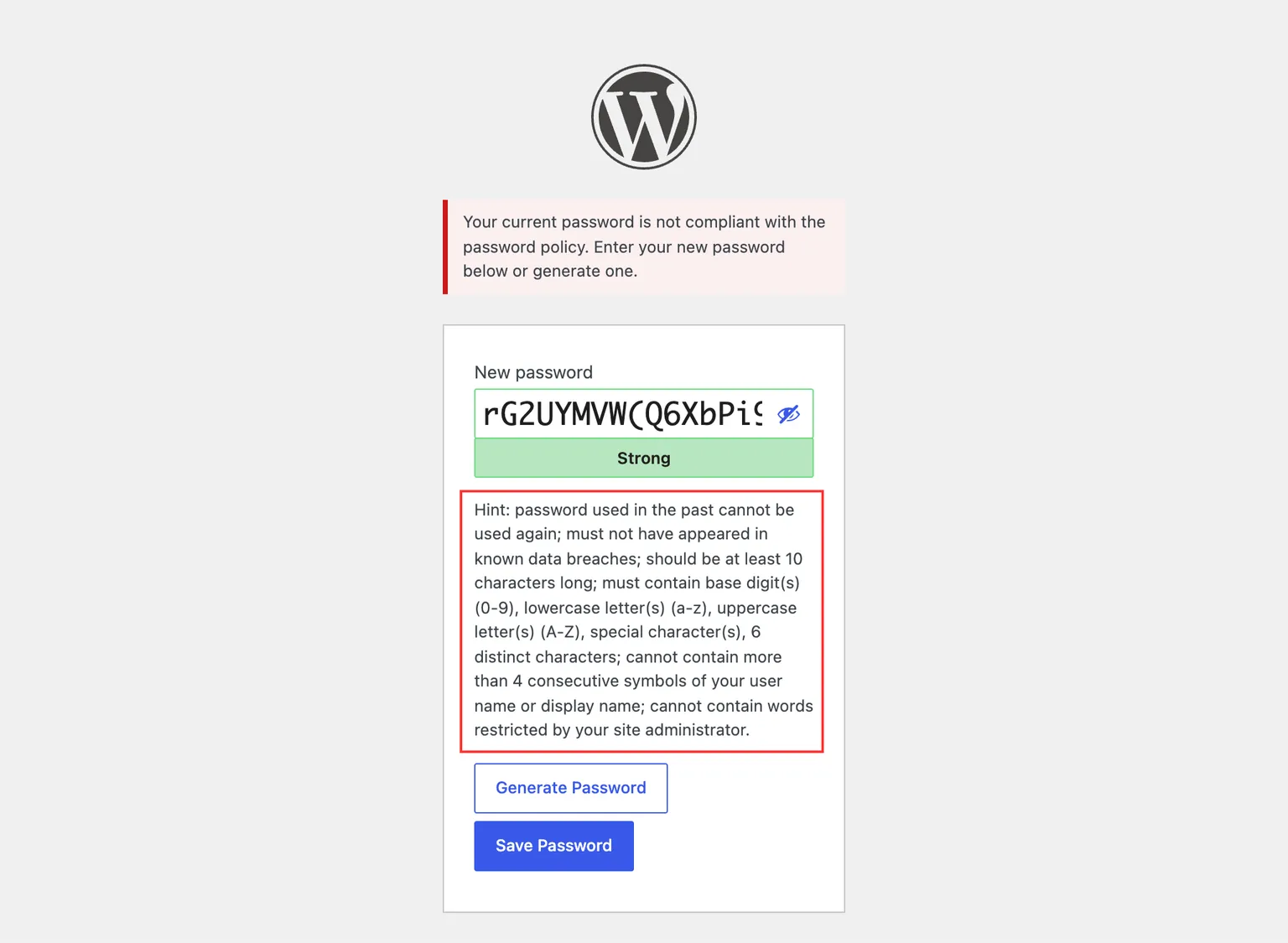
WordPress displays a password hint below the password field on its password reset form, to guide users in choosing a strong password. Teydea Login Security replaces that default hint with a dynamic hint listing the specific requirements defined in the active password policy — and adds a hint of the same kind to every other screen that sets a password, where WordPress itself shows none.
The hint only describes the policy; it does not check anything as the user types. Every rule is enforced on the server when the form is submitted, so the server rejects passwords that violate the active policy even if the hint did not identify the problem.
Where the Hint Appears
- The password reset form (
wp-login.php?action=rp) — the default WordPress hint is replaced with the requirements of the policy that applies to the account being reset. - Your own profile (Users → Profile) — WordPress shows no hint here, so the plugin renders one next to the New Password field, describing the policy that governs your account.
- Another user’s profile (Users → All Users → _edit a user_) — the same hint, describing the policy that governs the account being edited rather than your own.
- The Add New User screen (Users → Add New) — WordPress shows no hint here either, so the plugin renders one next to the Password field, describing the policy that will govern the new account. (PRO) With role-targeted policies, the hint describes the policy of the selected role.
The Add New User hint applies to single sites only. On a multisite network that screen collects no password — the account is created through the network signup flow instead — so there is nothing to describe there. The profile hints appear on single sites and networks alike.
What the Hint Contains
The hint is generated based on the rules currently enabled in the policy that applies to the user. It may include:
- Minimum length — “should be at least 10 characters long”
- Character types — “must contain uppercase letter(s), lowercase letter(s), base digit(s) (0-9), special character(s)”
- Unique characters — “6 unique (non-repeated) characters”
- User name restrictions — “cannot contain more than 4 consecutive symbols of your user name or display name”
- Restricted characters — “cannot contain restricted characters” followed by the specific characters
- Password reuse (PRO) — “used in the past cannot be used again”
The hint adjusts automatically as you change policy settings. If a rule is disabled, its corresponding hint text is removed.
Context-Aware Hints
The hint is personalized to the account whose password is being set. For example:
- When a user resets their own password, the hint reflects the policy that applies to their account.
- When a user sets a new password on their own profile, the hint reflects the policy that applies to their account. (PRO) That includes a policy targeted at them by name, because the account already exists.
- When an administrator edits another user’s profile, the hint reflects the policy that governs that account, not the administrator’s own.
- When an administrator creates a new user, the hint reflects the policy that governs the new account. In the free plugin a single policy covers every user, so every role shows the same requirements. (PRO) Role-targeted policies make the hint follow the Role dropdown: picking a different role updates the hint straight away, without reloading the page.
On the Add New User screen the hint always reflects the role-based (or apply-to-all) policy. (PRO) A policy targeted at named users only ever covers accounts that already exist, so it never applies to an account being created here — not in the hint, and not when the form is submitted. A named-user policy can only govern that account later, once it exists.
See also: Policy-Compliant Generated Passwords, for what happens to the password itself on screens where WordPress mints one instead of a person typing it.