Documentation / User Coverage
User Coverage
Overview
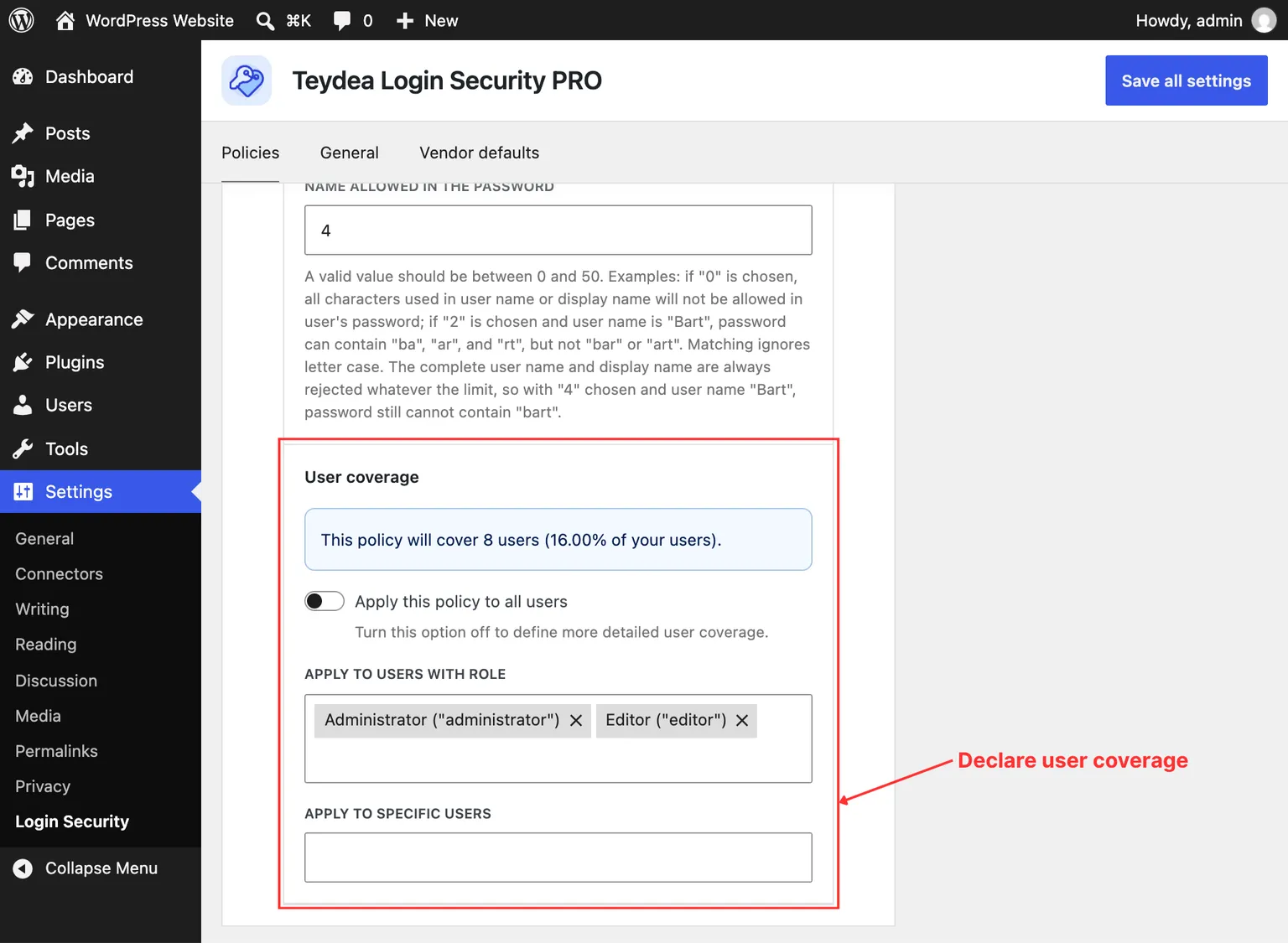
In the PRO version, each password policy includes a User coverage section that controls which users the policy applies to. This allows you to create different password policies for different user groups — for example, a strict policy for administrators and a standard policy for subscribers.
Coverage Options
Apply to All Users
By default, the Apply this policy to all users toggle is enabled. When active, the policy applies to every user on your site.
Targeting by Role
To apply a policy only to users with specific roles:
- Disable the Apply this policy to all users toggle.
- In the User roles selector that appears, select the roles this policy should cover (e.g., Administrator, Editor, Subscriber).
Targeting by User
To apply a policy to specific individual users:
- Disable the Apply this policy to all users toggle.
- In the Users selector that appears, search for and select individual users by username.
You can combine role-based and user-based targeting. A user matches the policy if they belong to any of the selected roles or are listed as a specific user.
Coverage Preview
When you configure user coverage, the plugin calculates and displays how many users the policy will cover. A notice appears showing the number of affected users and the percentage of your total user base, for example: “This policy will cover 5 users (25.00% of your users).”
Policy Priority
When multiple policies are active, they are evaluated from top to bottom in the order they appear on the settings page. The first policy whose coverage matches a user is the one that applies. Remaining policies are ignored for that user.
To reorder policies, drag them into the desired position on the Policies tab.
Warning: Ensure that your policies are ordered from most specific to least specific. A broad “all users” policy placed above a role-specific policy would prevent the role-specific policy from ever being applied.