Documentation / Creating a Password Policy
Creating a Password Policy
Overview
A password policy defines which rules apply to user passwords on your site. In the free version, you can manage one policy. The PRO version supports unlimited policies, each targeting different user groups.
Creating a Policy
- Navigate to Settings → Login Security.
- Open the Policy tab (or Policies in PRO).
- In the free version, a default policy is created automatically. In the PRO version, click Add new policy to create one.
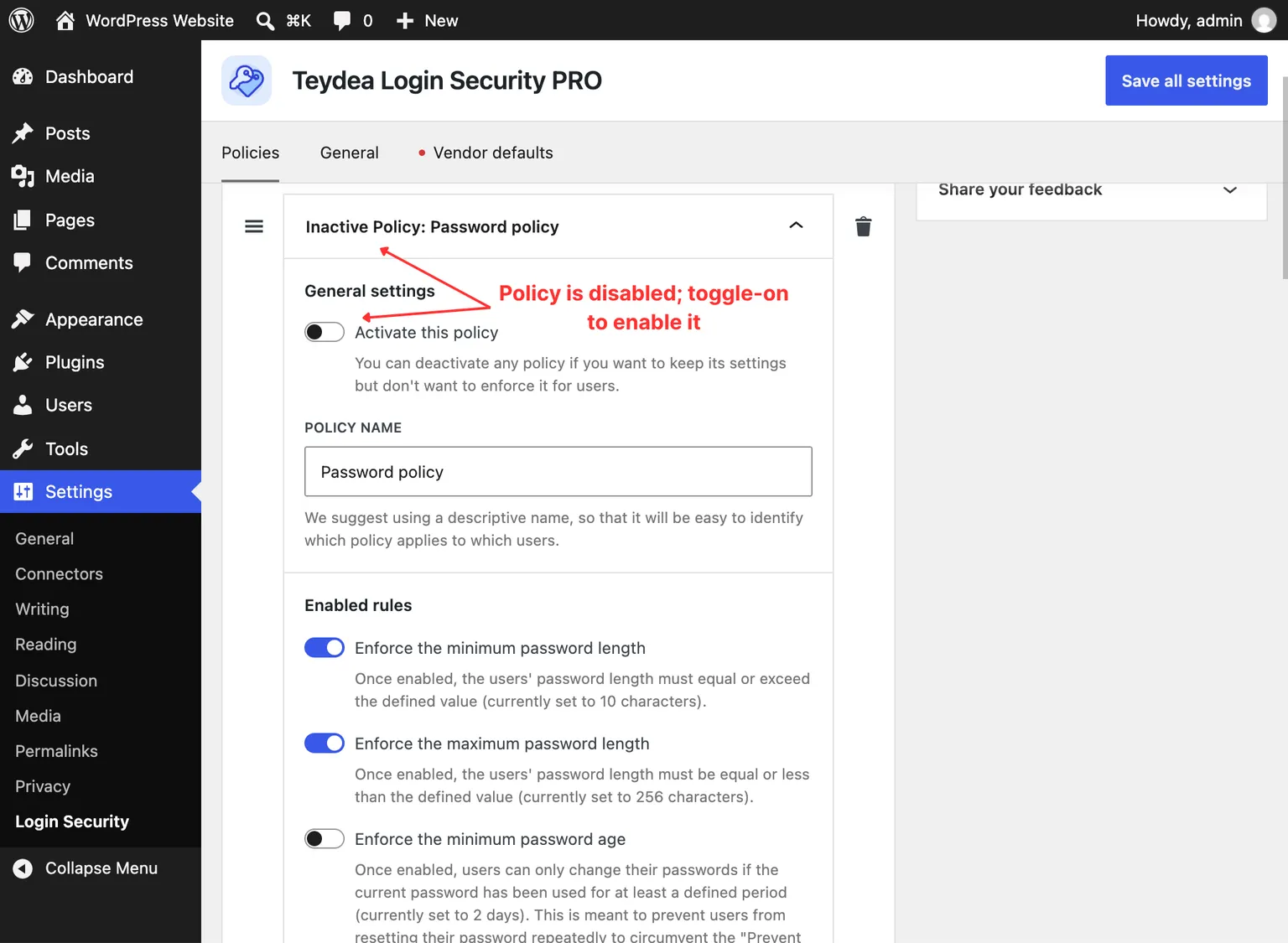
- In the policy’s General settings, enable Activate this policy, then click Save all settings.
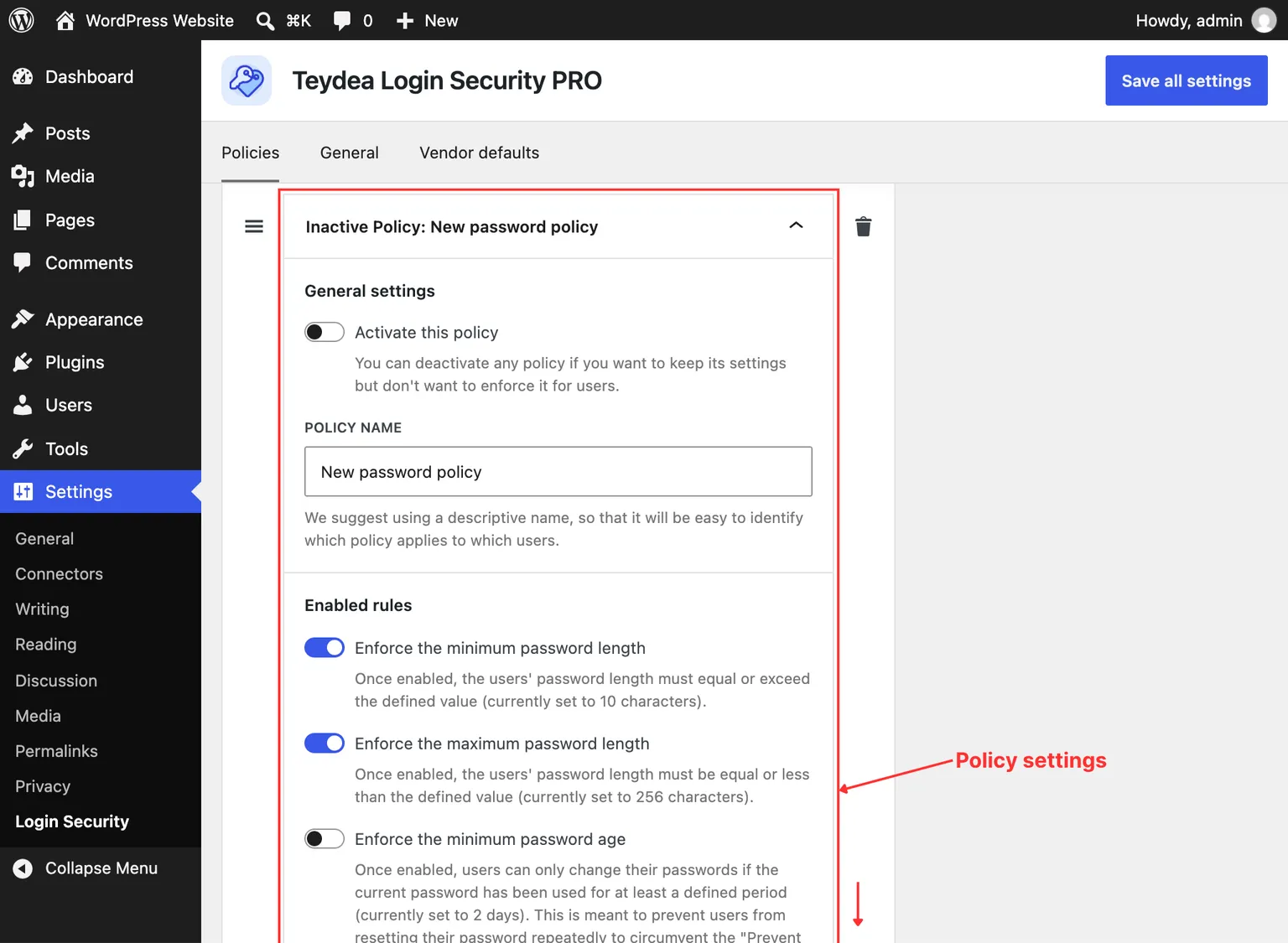
A policy is inactive when it is first created — including the default policy the free version sets up for you. Until you activate it, the plugin enforces nothing, no matter which rules are enabled inside it. While the toggle is off, the policy’s panel header reads Inactive Policy instead of Policy.
Policy Settings
Each policy contains the following sections:
General Settings
- Activate this policy — Toggle to enable or disable the policy. New policies start deactivated. A deactivated policy retains its settings but is skipped entirely, so none of its rules apply to anyone.
- Policy name — A descriptive name to identify the policy (default: “New password policy”). Use a name that describes which users it applies to, such as “Administrator policy” or “Default policy.”
Enabled Rules
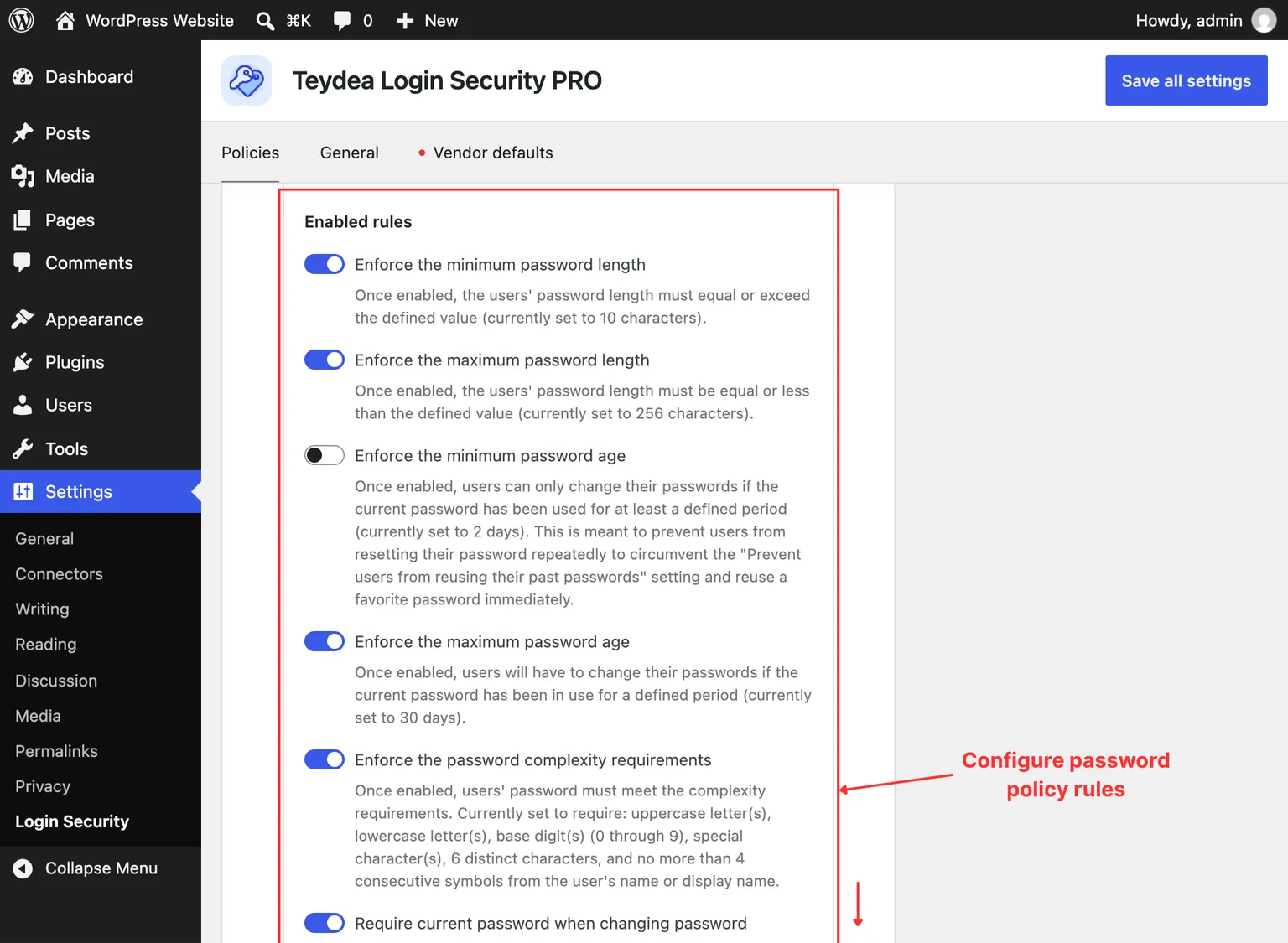
Toggle individual rules on or off. Each rule has a description that shows its current configuration. The available rules are:
- Enforce the minimum password length — Requires passwords to have at least a certain number of characters. See Length Rules.
- Enforce the maximum password length — Limits password length to a maximum number of characters. See Length Rules.
- Enforce the minimum password age — Prevents users from changing passwords too frequently. See Age Rules.
- Enforce the maximum password age — Forces password changes after a certain number of days. See Age Rules.
- Enforce the password complexity requirements — Requires specific character types in passwords. See Complexity Rules.
- Require current password when changing password — Users must enter their current password before setting a new one. See Require Current Password.
- Prevent users from reusing their past passwords (PRO) — Blocks users from reusing recent passwords. See Password Reuse Prevention.
- Check user’s passwords against the weaklist (PRO) — Rejects commonly used weak passwords. See Weak Password List.
- Block passwords found in known data breaches (Pwned Passwords) (PRO) — Screens passwords against the HaveIBeenPwned breach corpus. See Breached Password Screening.
- Apply the restricted words and phrases list — Rejects passwords containing any word or phrase from the site-wide list. See Restricted Words and Phrases.
Rule Settings
Numeric settings for each rule appear in the Rule settings section. These include minimum/maximum lengths, age values in days, complexity thresholds, and restricted characters. See the individual rule pages for details on each setting.
Saving a Policy
After configuring the policy, click Save all settings at the top-right of the page. The policy takes effect immediately for all applicable users.
Multiple Policies (PRO)
In the PRO version, you can create multiple policies and assign each to different user groups. Policies are evaluated from top to bottom. The first matching policy applies to a user; remaining policies are ignored for that user. Drag policies to reorder them from most specific to least specific. See User Coverage for details on targeting policies to specific users.