Documentation / Vendor-Default Account Detection
Vendor-Default Account Detection
Overview
Accounts with predictable usernames — admin, root, test, a name matching your domain, or a display name left equal to the login — are a favorite target of automated attacks. The PRO version scans your users for these patterns, grades each finding by risk, and gives you a place to review and remediate them.
The scan is read-only: it never changes or deletes accounts. It only reports what it finds so you can act.
What It Detects
Each finding matches one of four rules:
- Vendor-default username — the login is a common default such as
admin,administrator,root,test,wordpress,webmaster, orsupport. - Username matches site domain — the login is the same as your site’s domain name.
- Generic placeholder username — the login looks like
user,user1, and so on. - Display name unchanged — the account’s public display name is still identical to its login, which can expose the username.
Each finding is graded High, Medium, or Low. Grading is role-aware: the same pattern on an administrator account is treated as higher risk than on a low-privilege account.
Reviewing Findings
Navigate to Settings → Login Security and open the Vendor defaults tab. The Vendor-default account findings table lists each finding with Account, Issue, Severity, Status, and Actions columns. You can filter by severity and status and adjust how many rows appear per page.
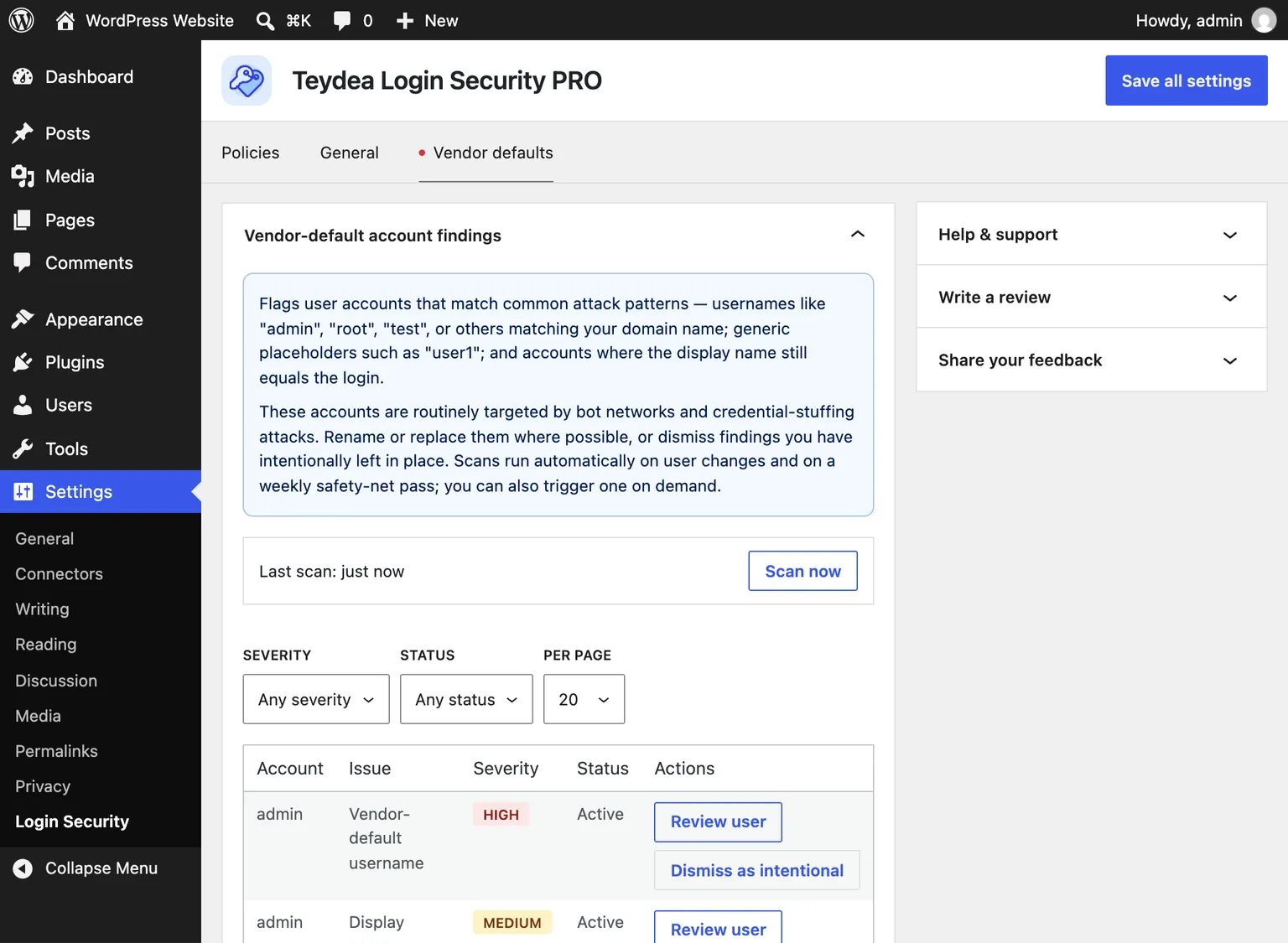
For each finding you can:
- Review user — open the user’s profile to rename or replace the account.
- Dismiss as intentional — mark a finding as accepted, optionally with a reason. Dismissed findings move to the “Dismissed” status.
- Re-flag — return a dismissed finding to active review.
Where You'll Be Alerted
- Dashboard widget — an Account security findings widget on the WordPress dashboard shows the top unacknowledged findings with a link to see the rest.
- Admin notices — when unacknowledged high-severity findings exist, a Vendor-default account findings detected notice links you to the tab.
Running the Scan
The scan runs automatically: it rescans an account whenever a user is created, updated, has roles changed, or is deleted, and a weekly full scan acts as a safety net. Large sites are scanned in batches so the work never blocks a page load.
If your site’s scheduled tasks (WP-Cron) are not running, scans can stall. When that happens you’ll see an Account security scan has stalled notice and a matching Tools → Site Health test, and the tab shows a Scan now button. Click Scan now to advance the scan manually. On large sites it may take a few clicks to finish; the tab tells you when to click again.
Extending the Username List
The built-in list of default usernames can be extended programmatically with the password_requirements__vendor_default_usernames filter. See Hooks and Filters.