Documentation / Restricted Words and Phrases
Restricted Words and Phrases
Overview
The restricted words and phrases list lets you block specific words and phrases from appearing anywhere in a user’s password. This is useful for keeping site-specific tokens — your brand name, product names, your city, or a common year — out of passwords, since attackers often build guess lists from exactly these terms.
Matching is a case-insensitive substring check: a password is rejected if any entry on the list appears anywhere inside it. For example, if acme is on the list, the password Acme-Winter-2026! is rejected.
Enabling the Rule
The list is applied per policy:
- Navigate to Settings → Login Security.
- In the Enabled rules section, enable Apply the restricted words and phrases list.
- Click Save all settings.
Each policy has its own toggle, so you can enforce the list for some policies and not others. The rule takes effect whenever the active list is not empty — including any entries added automatically by your site or other plugins (see “Automatically Added Phrases” below), even if you have not saved any of your own.
Managing the List
The list itself is site-wide (shared across every policy) and is edited on the General tab:
- Navigate to Settings → Login Security and open the General tab.
- In the Restricted words and phrases panel, use the Words and phrases that user passwords cannot contain field.
- Enter one word or phrase per line.
- Click Save all settings.
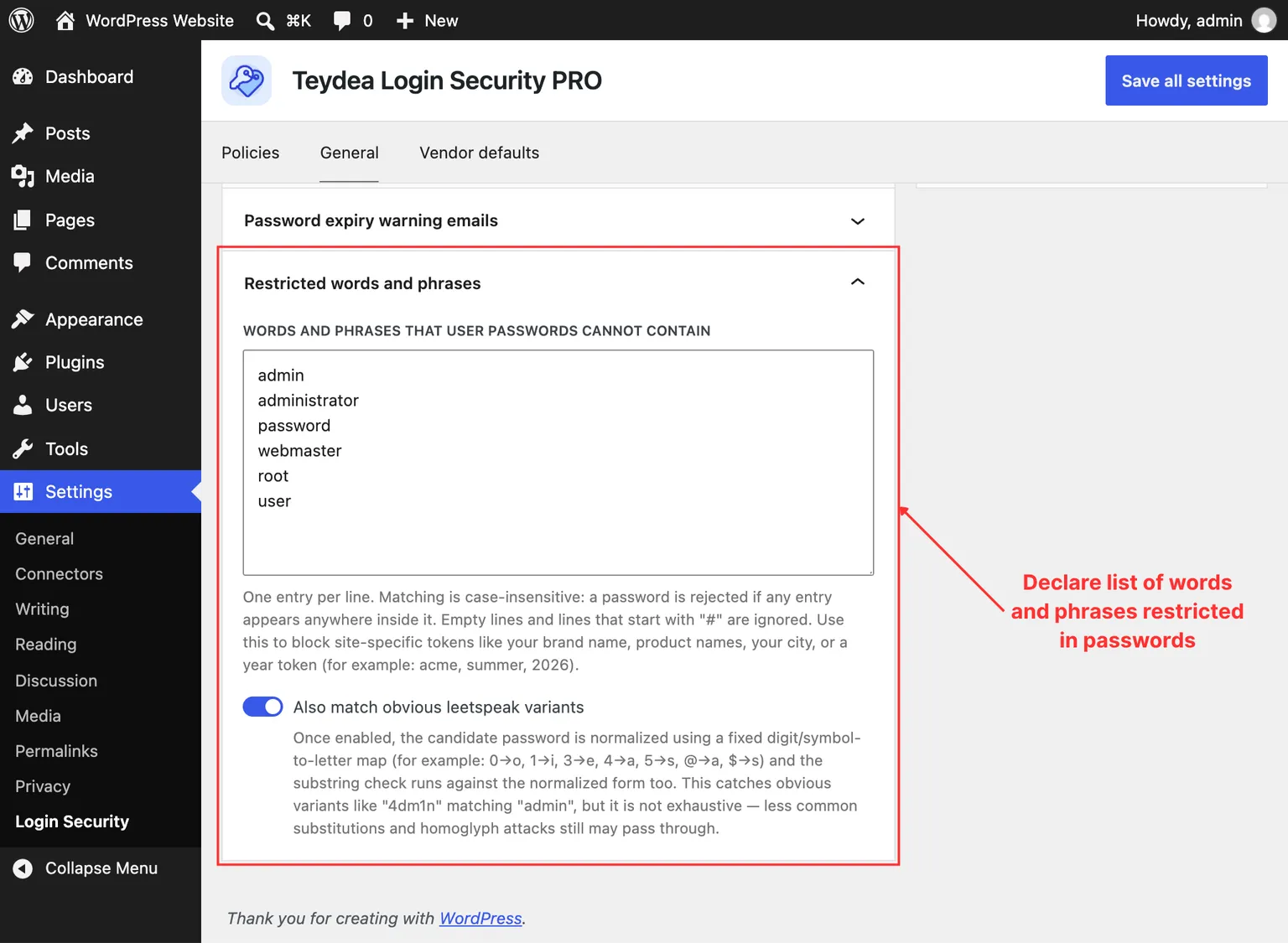
Formatting rules for the field:
- One entry per line.
- Matching is case-insensitive.
- Empty lines are ignored.
- Lines that start with
#are treated as comments and ignored.
The plugin ships with a starter list: admin, administrator, password, webmaster, root, and user. Edit or remove these as needed.
Character Encoding
Entries and passwords are always compared as valid UTF-8, regardless of your server’s own character encoding, so accented and non-Latin entries match consistently. If you try to save an entry that is not valid UTF-8, the save is rejected with an error naming the offending line. An entry that was already stored before this validation existed is repaired automatically the next time the list loads, rather than being dropped from the list.
Automatically Added Phrases
Some phrases are blocked automatically and are not stored in the field above. Your site contributes its own domain label (the main part of your site’s domain name), and other plugins can add entries too. When any automatic entries are active, a read-only notice below the field lists them so you can see the full set of blocked terms. These entries cannot be edited from the settings page.
Leetspeak Matching (PRO)
By default the check compares passwords against the list as written. The PRO version can also catch obvious character substitutions. In the Restricted words and phrases panel, enable Also match obvious leetspeak variants.
When enabled, the plugin normalizes the candidate password using a fixed digit- and symbol-to-letter map (for example 0→o, 1→i, 3→e, 4→a, 5→s, @→a, $→s) and runs the check against the normalized form as well as the original. This catches variants such as 4dm1n matching admin. It is not exhaustive — less common substitutions and lookalike (homoglyph) characters can still slip through — so treat it as an added layer rather than a complete defense.
What Users See
When a password contains a restricted term, the change is rejected with a message that does not reveal the list: “Your password contains a word that is not allowed by this site’s policy. Please choose a different password.” The password hint also notes that passwords cannot contain words restricted by the site administrator.
Extending the List Programmatically
Developers can add entries at runtime with the password_requirements__custom_restricted_phrases filter. Filter-contributed phrases are additive and cannot remove entries you have saved. See Hooks and Filters.